
Before you add menu items to a privilege, or cut a privilege down to read-only, the business usually asks one question: what does it do to the license bill? Will the users stay on a cheaper tier, such as Team Members or Operations - Activity, or will they need a full license, such as Finance or Supply Chain Management?
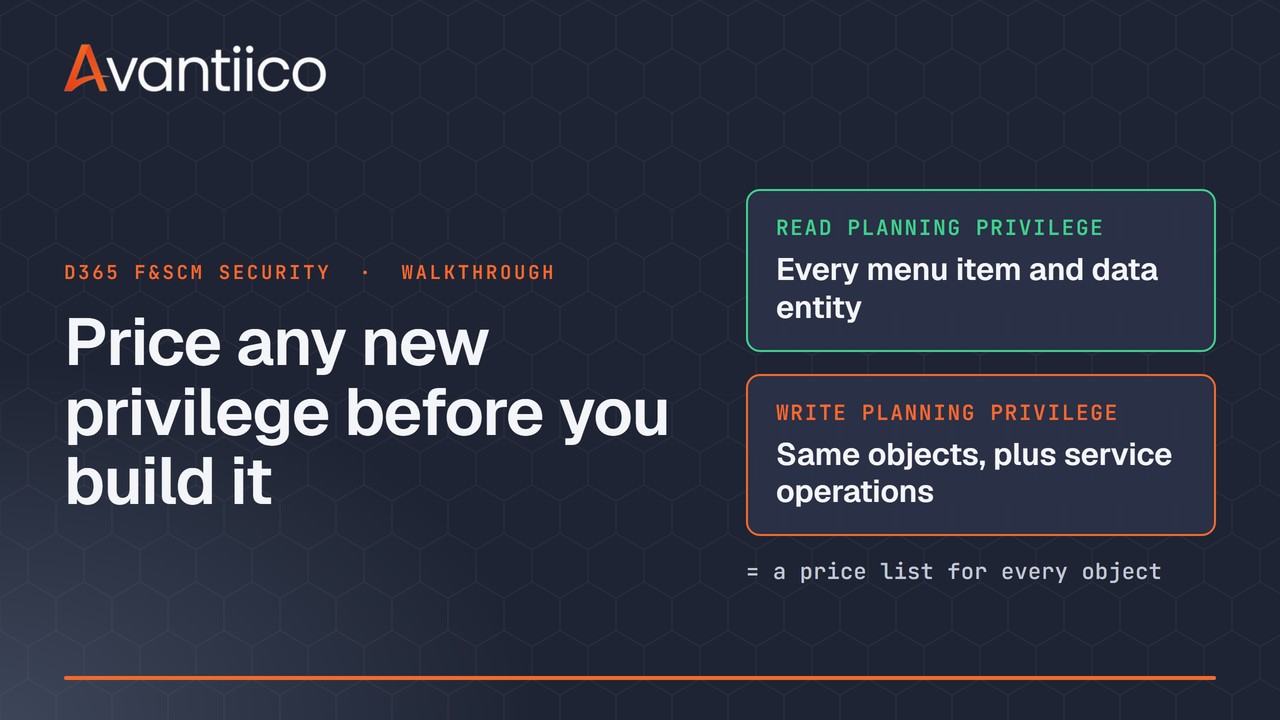
This guide shows how to answer that with evidence instead of assumptions, in Dynamics 365 Finance and Supply Chain Management. You build a license lookup once, in a test environment. Create a Read planning privilege that grants Read on all action, display, and output menu items and all data entities. Create a Write planning privilege that grants Write on the same objects, plus all service operations. Publish both and run the license assessment. Then export the Security object licenses view, which now states the license of every one of these objects at Read and at Write.
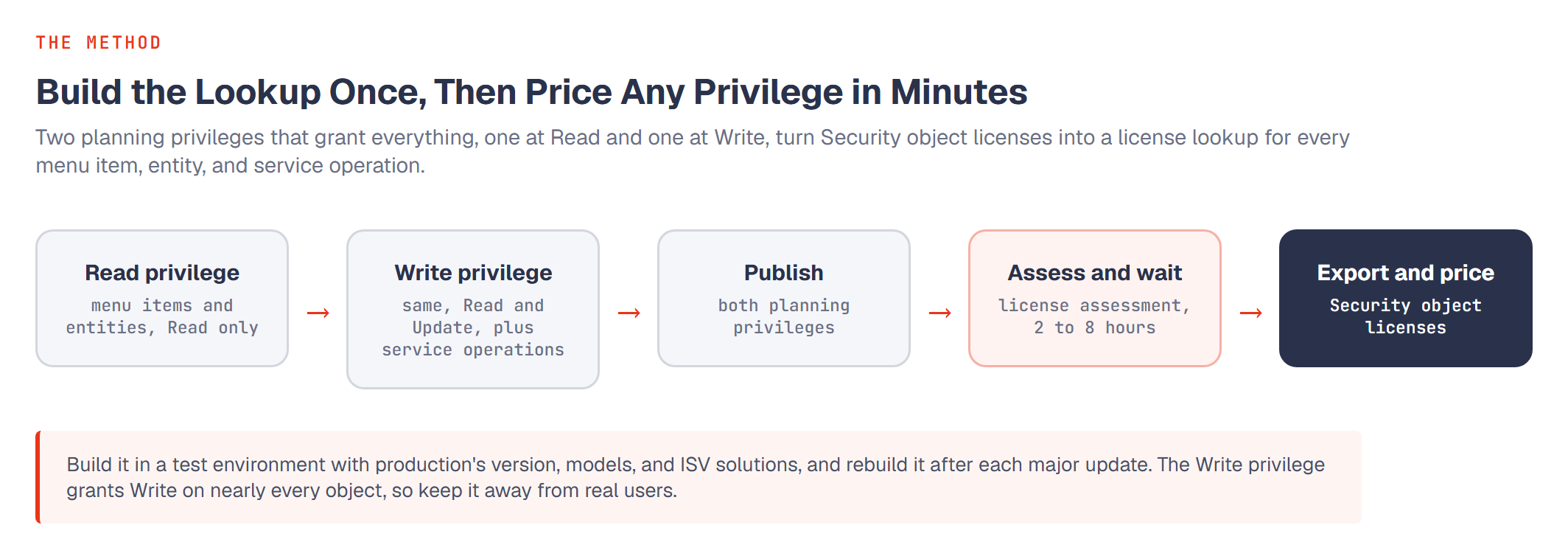
The walkthrough was recorded in Avantiico's own test environment (company USMF, Contoso demo data) on version 10.0.49 (application 10.0.2790.46, platform Update73, 7.0.8199.32), and the lookup was exported on 2026-10-20. Licenses are Microsoft metadata and can change between versions, so rerun the exercise on your own version before you rely on it. What the finished lookup showed, including how often read-only access still needs a full license, is in the companion article, swapping Write for Read doesn't always lower the license.
The question, and the short answer
You're about to create a privilege, add menu items to one, or cut one to read-only. Will it push the users to a more expensive license, or keep them on a cheaper tier?
| Question | Answer from the exercise |
|---|---|
| Where do I see the license a security object needs? | System administration > Security > Security governance > Licenses usage summary > Security object licenses. Each row shows a security object on one path, its access level (Read or Write), and the license it requires. |
| Can I look it up in my production environment? | Only partly. An object appears only where a privilege grants it, and only at the access level that privilege grants. For an object your roles grant only at Write, the view never shows its Read license. |
| How do I find an object's Read license? | Grant everything at Read in one privilege and at Write in another, in a test environment, and let Dynamics 365 compute the license. That's this exercise. |
| Is Read always Team Members or cheaper? | No. Thousands of objects need a paid license even at Read. The companion article has the numbers. |
| Does the role or privilege change an object's license? | No. The same object at the same access level carries the same license, whichever role, duty, or privilege grants it. What does matter is the securable type: the same name can be priced differently as a display menu item and as an action menu item. |
| What does Write mean? | Any permission beyond Read. Granting Update is enough; you don't have to grant Create, Delete, and Correct as well. Invoke also counts as Write. |
| How long until I see results? | The banner on Licenses usage summary says 2 to 8 hours. |
What decides an object's license, and what doesn't
Two things decide the license. The first is the object, identified by its securable type, AOT name, and AOT child name. The type matters because the same name can exist as a display, an action, and an output menu item with different licenses. HMIMMultimodalDG at Read, for example, is Team Members as a display menu item but Supply Chain Management as an action or output menu item. The child name matters for service operations, where operations of one service class can carry different licenses. The second is the access level: Read when only Read is granted, Write when anything beyond Read is granted.
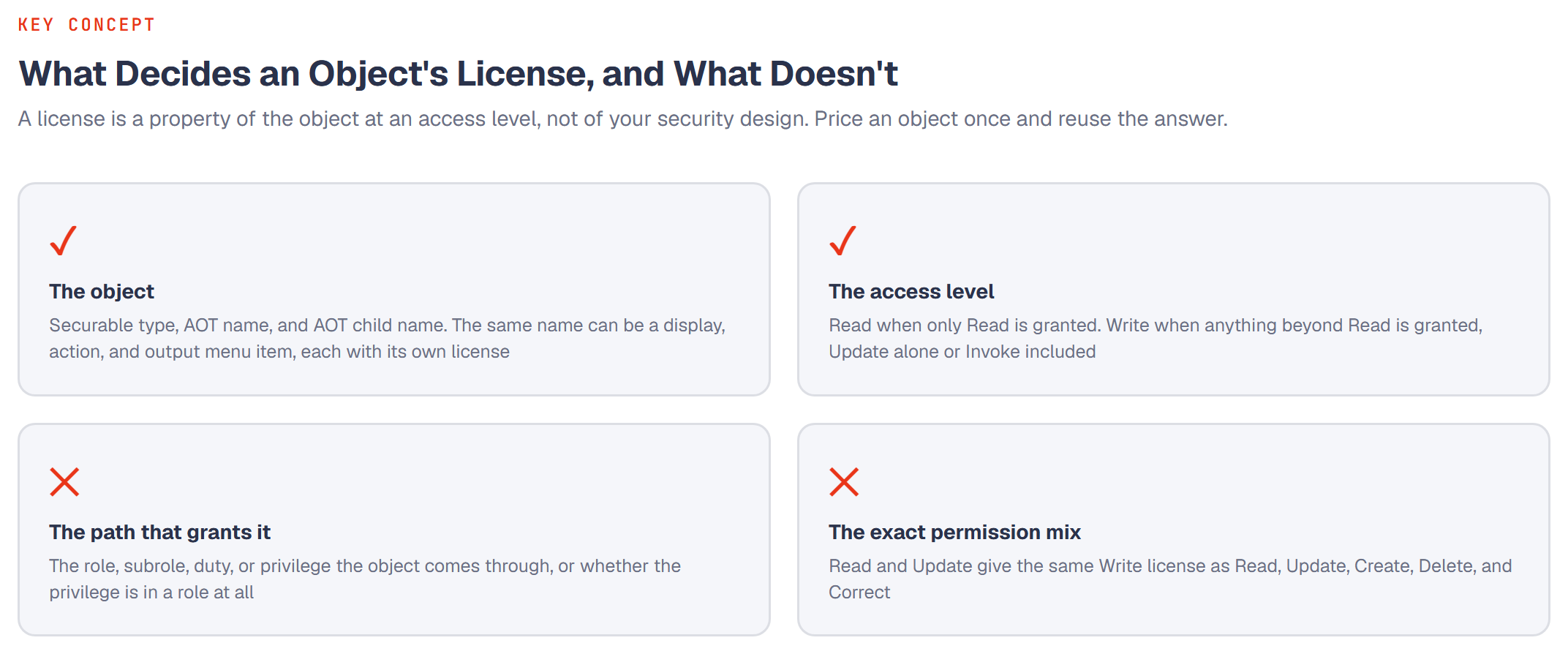
What doesn't affect it: the role, subrole, duty, or privilege that grants the object, whether the privilege is in a role at all, and the exact mix of permissions within the same access level. Read and Update gives the same Write license as Read, Update, Create, Delete, and Correct.
A license is a property of the object, not of your security design, so a lookup table keyed on type, name, child name, and access level is enough to predict a privilege's license before you build it.
Why production data can't answer the question
The obvious first step is to open Security object licenses in your own environment and look up the objects you plan to change.
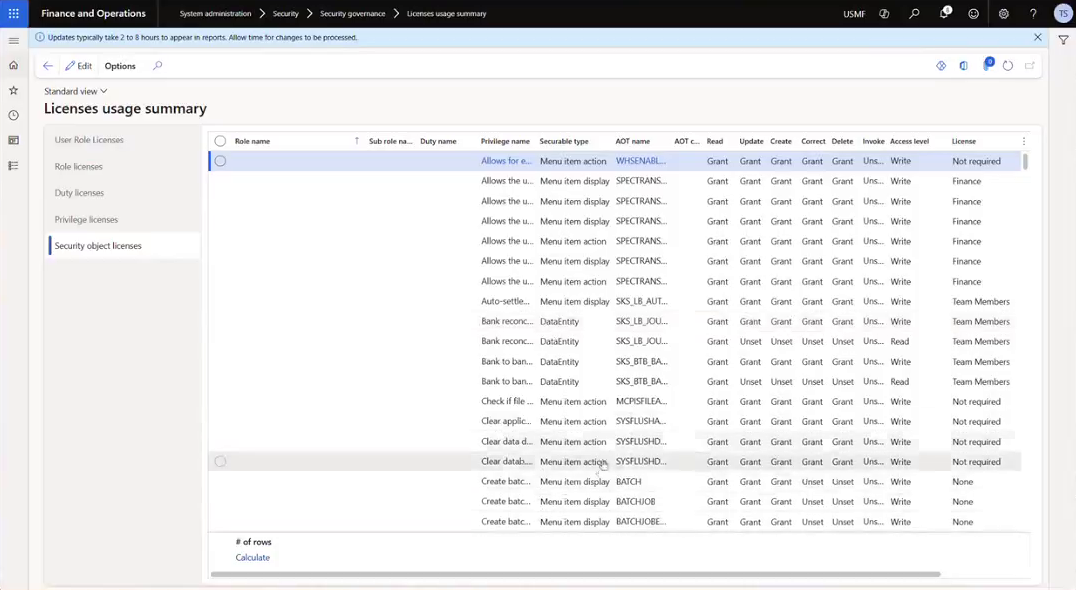
Avantiico analyzed this view across five client production environments, seven snapshots and about 3.7 million rows. About 99% of the rows sit on a role; the rest come from privileges that aren't in any role. Read rows on a role are almost never paid: 99.996% of them show Team Members, Human Resources Self Service, or None.
That looks like proof that Read is cheap, and Microsoft Learn says the same: "When Access level is Read, the applicable license is no higher than Team Members or Human Resources Self-Service." The conclusion is still wrong, because of selection. The view states a Read license only where some privilege actually grants Read. For an object that every role grants only at Write, the view never shows what its Read license would be.
Those blind spots are large. Among objects that roles grant at Write with a paid license, about a third of the forms and about nine in ten of the actions are never granted at Read by any role. Their Read license isn't cheap; it's simply missing from the data. The entitlement data doesn't fill the gap either, because its Read entries exist exactly where roles grant Read.
The presenter explained the limit at the start of the session: an object is assessed only when a privilege grants it, and only at the access level that privilege grants. The fix is to grant every object at both levels and let Dynamics 365 compute the license.
Key concepts
| Term | Meaning |
|---|---|
| Security object (securable object, entry point) | Something a privilege can grant: a display menu item (a form), an action menu item (runs a process), an output menu item (a report), a data entity, a service operation, and so on. |
| Privilege | A group of permissions on security objects. Privileges go into duties and roles. |
| Permissions | Read, Update, Create, Delete, Correct, and Invoke. Each is Unset, Grant, or Deny. |
| Access level | The level the license engine evaluates. It's Read when only Read is granted and Write when any permission beyond Read is granted. |
| Invoke | Run an operation. It's the only permission on a service operation, and it counts as Write ("as it is an execution," in the presenter's words). |
| License tiers | Roughly from cheapest to most expensive: None or Not required, Team Members or Human Resources Self-Service, Operations - Activity, and the full licenses: Finance, Supply Chain Management, Commerce, Project Operations, and Human Resources. |
| Security object licenses | A preview view in Licenses usage summary. Each row is a security object on one path (role, subrole, duty, privilege), with the permission grants, the Access level, and the License. When several licenses qualify, the License column joins them with "or," for example "Finance or Supply Chain Management." To filter, use the values as the view writes them, for example Operations - Activity and Human Resources Self Service. |
| License assessment | Microsoft's computation of the license each user needs. The presenter ran it in the Power Platform admin center. It feeds the Security object licenses view. |
Licensing is assessed per user, from all the roles the user holds. Each user needs a license, or a base license plus attach licenses, that covers every object the user can reach. One object that needs Finance is enough to require Finance.
The Security object licenses view needs two features in System administration > Workspaces > Feature management, enabled in this order. First, User security governance license usage summary report, version 10.0.43 or later, together with User security governance. Then (Preview) User security governance security object license view, for which Microsoft Learn lists 10.0.47 or 10.0.48 with the latest quality update as the minimum.
Before you start
- Use a test environment, not production. The Write planning privilege grants Write on nearly every menu item and entity and Invoke on every service operation. Keep both planning privileges out of any role that real users hold.
- Match production's code. Use an environment with the same version, models, and ISV solutions as production, so their menu items and entities are in the lookup too. The test environment in this exercise includes an installed ISV solution, and its objects are part of the results.
- Save a security version first. This wasn't shown in the session, but it gives you a way back. Go to System administration > Security > Security governance > Security versions, select Create version, and wait for the status Ended. The previous tutorial in this series walks through it.
- Use a clear prefix. Start each name with your own prefix, for example your initials or company code, so the planning objects are easy to find and filter.
- Know what the lookup covers. Action, display, and output menu items, data entities, and service operations. It doesn't cover tables, form controls, or data entity methods. Tables can be added the same way (References > Tables); form controls and data entity methods aren't in the References list.
Create the Read planning privilege
Go to System administration > Security > Security configuration.
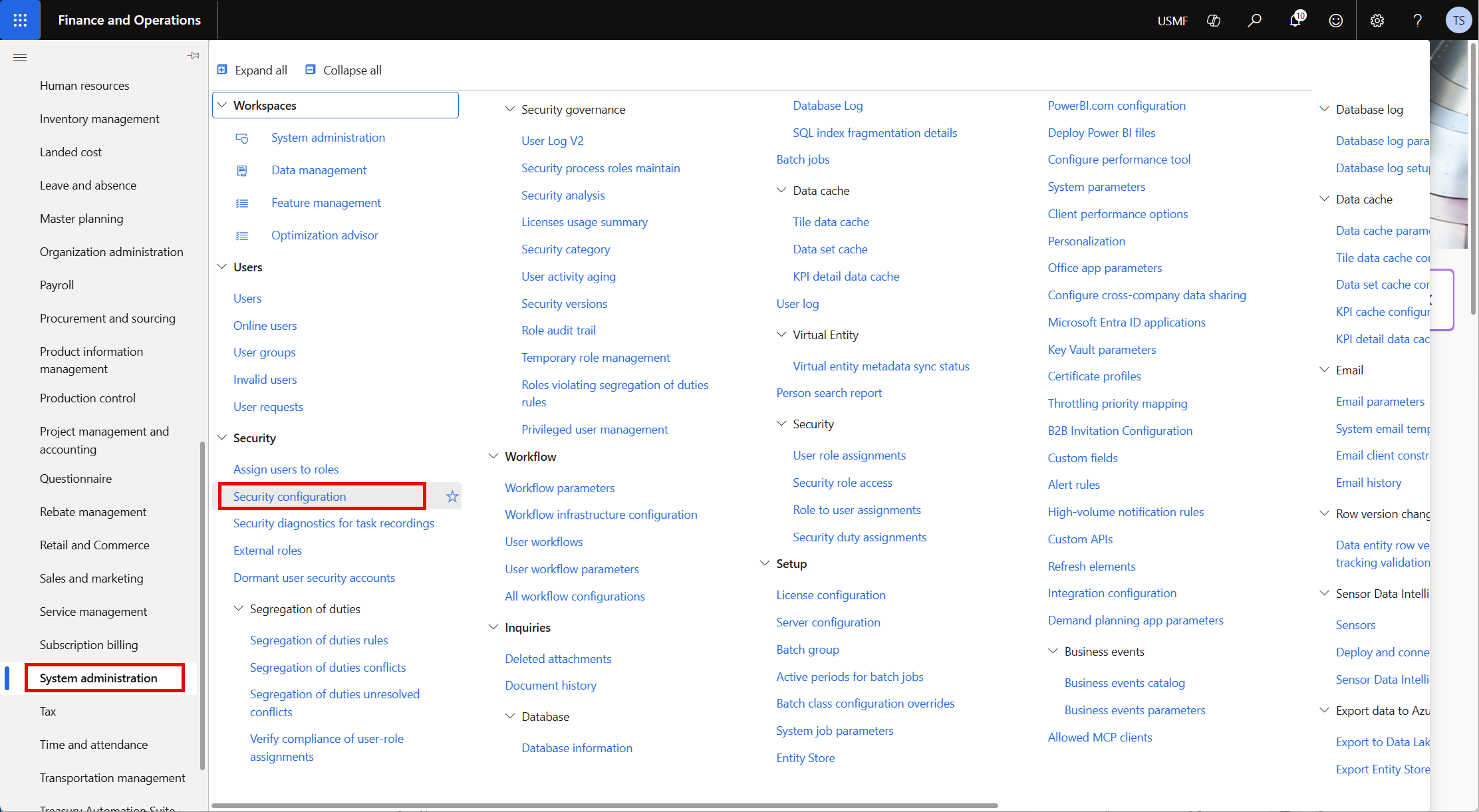
Open the Privileges tab, select Create new, enter your prefix followed by a name such as Security planning Read, and select OK.
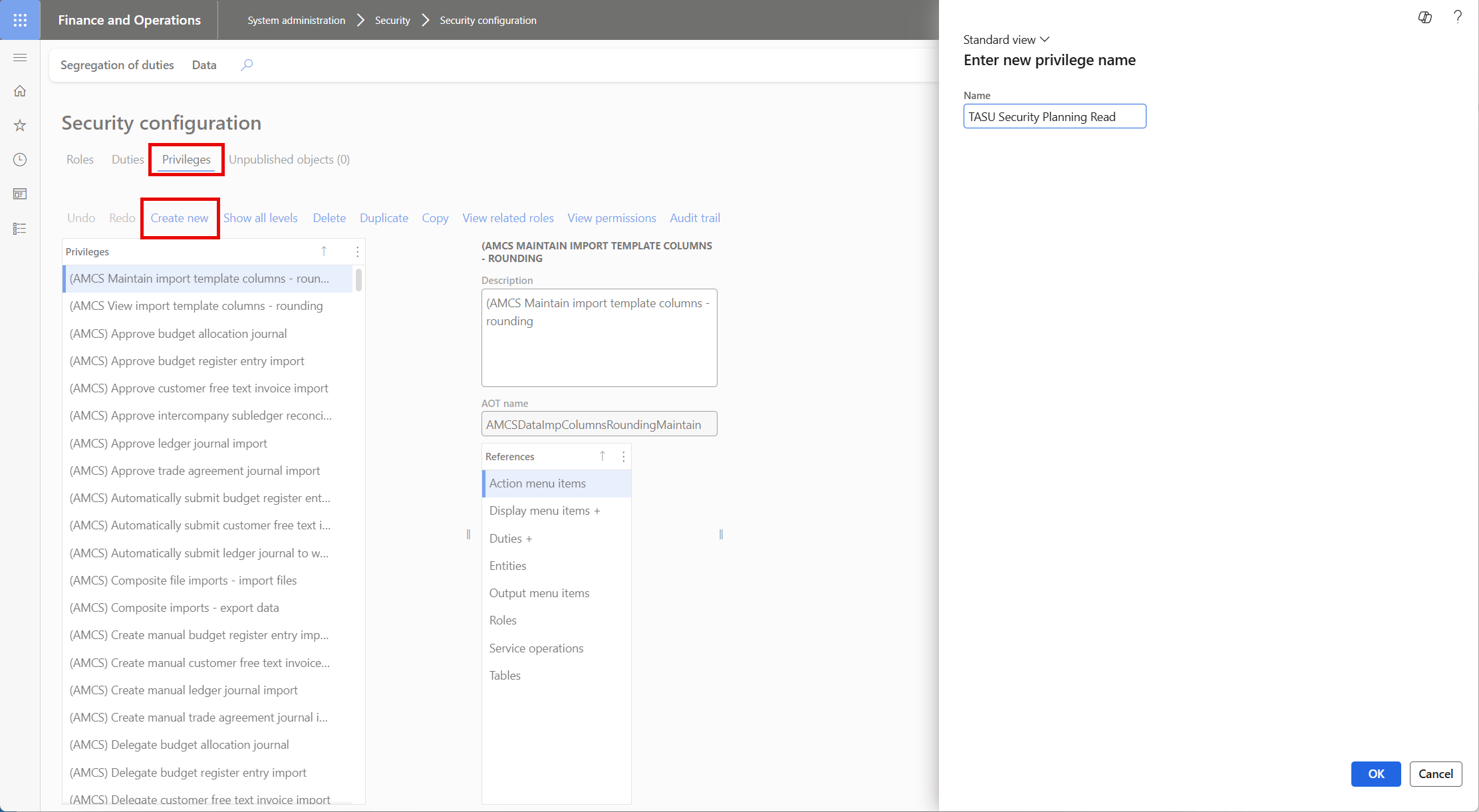
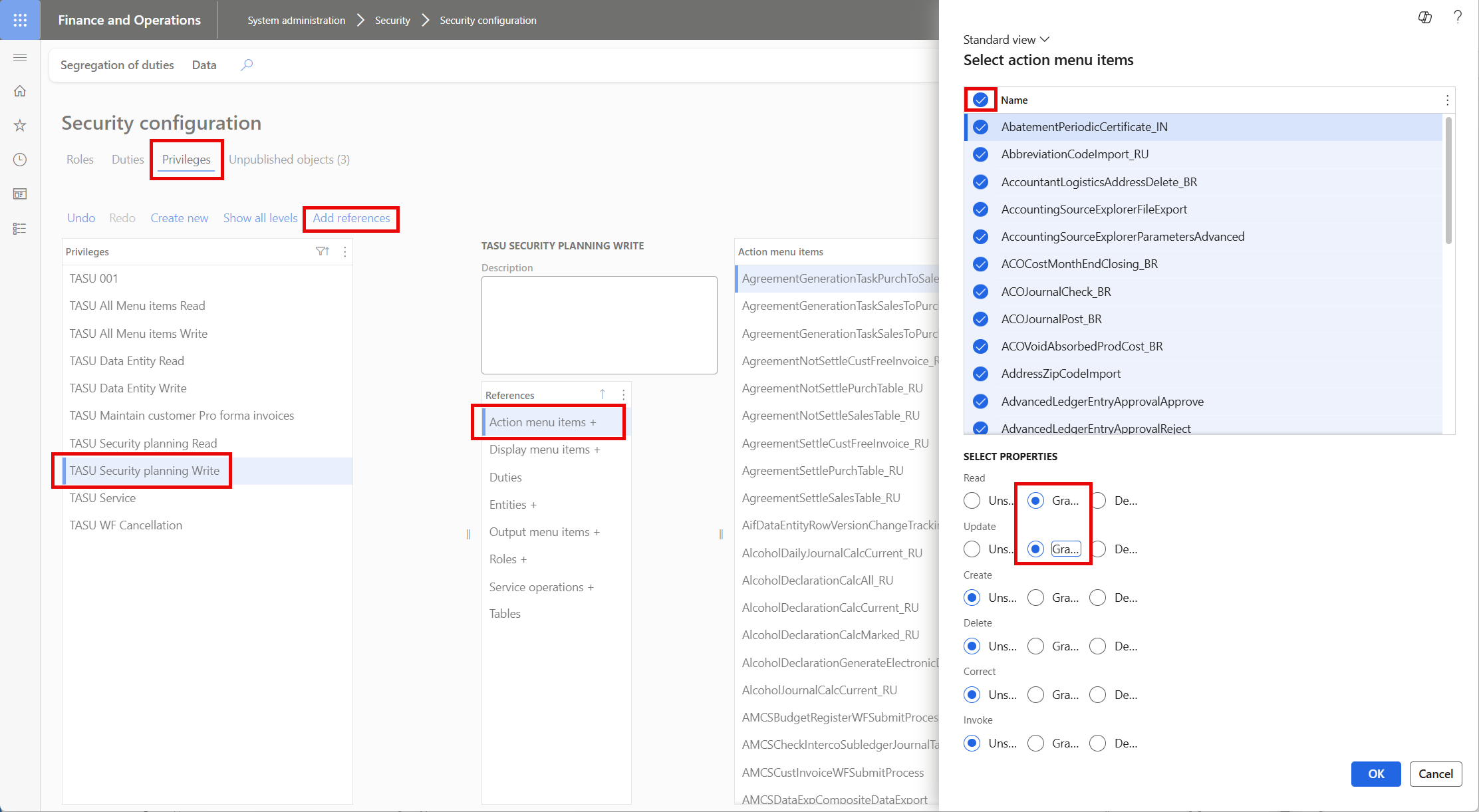
With the new privilege selected, under References, select Action menu items, and then select Add references. In Select action menu items, select all rows with the check box in the header. Under Select properties, set Read to Grant and leave Update, Create, Delete, Correct, and Invoke at Unset. Select OK.
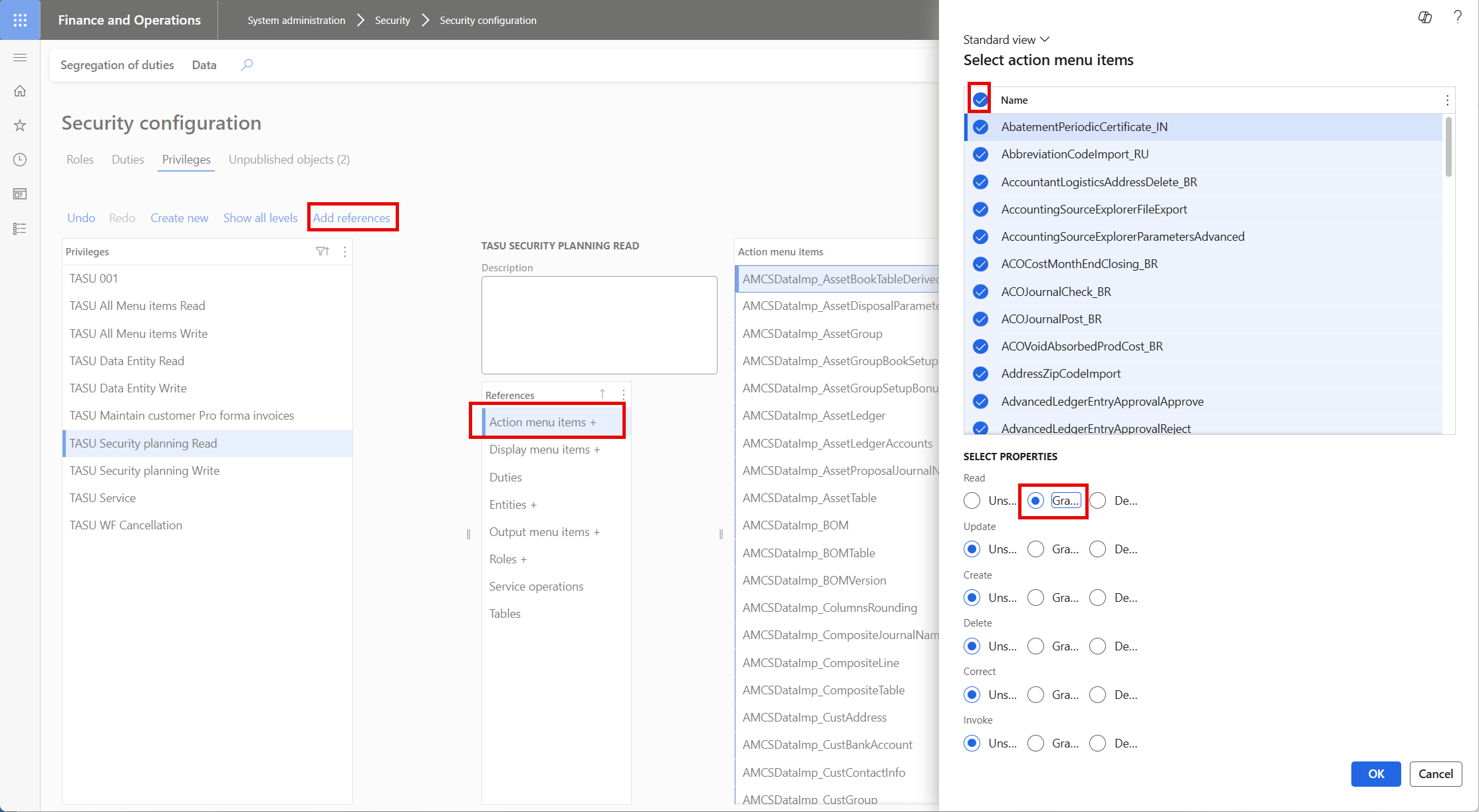
Repeat the same steps for Display menu items, Output menu items, and Entities. For entities, leave Integration mode at All.
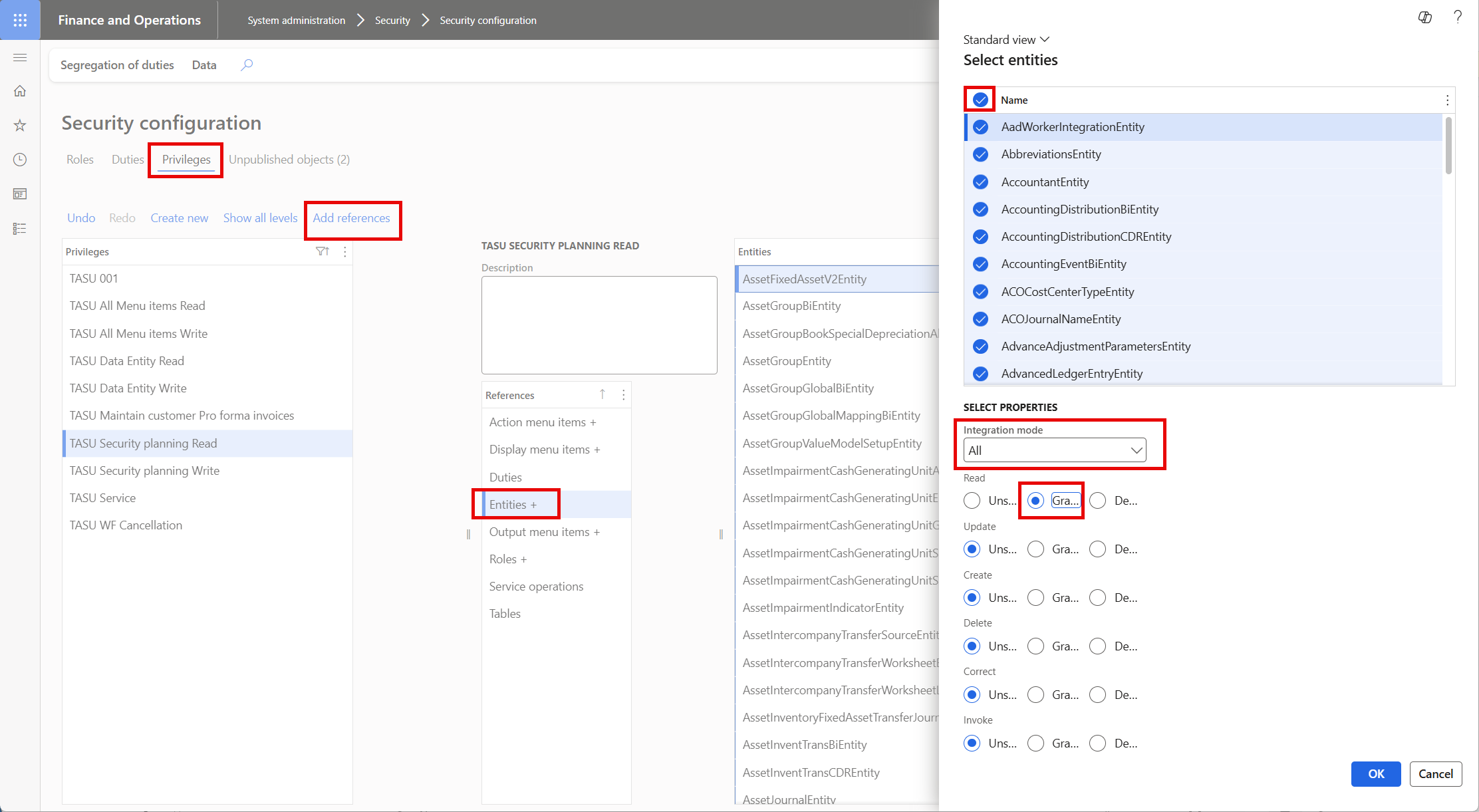
Skip Service operations. Their only permission is Invoke, which is always Write, so they can't be added at Read. They go into the Write privilege instead. A plus sign after a reference type, for example Action menu items +, shows that it has references.
Create the Write planning privilege
On the Privileges tab, select Create new again and name it with your prefix followed by, for example, Security planning Write. Add Action menu items, Display menu items, Output menu items, and Entities the same way as for the Read privilege, but set Read and Update to Grant. Granting Update is enough to make the access level Write; you don't need Create, Delete, or Correct as well.
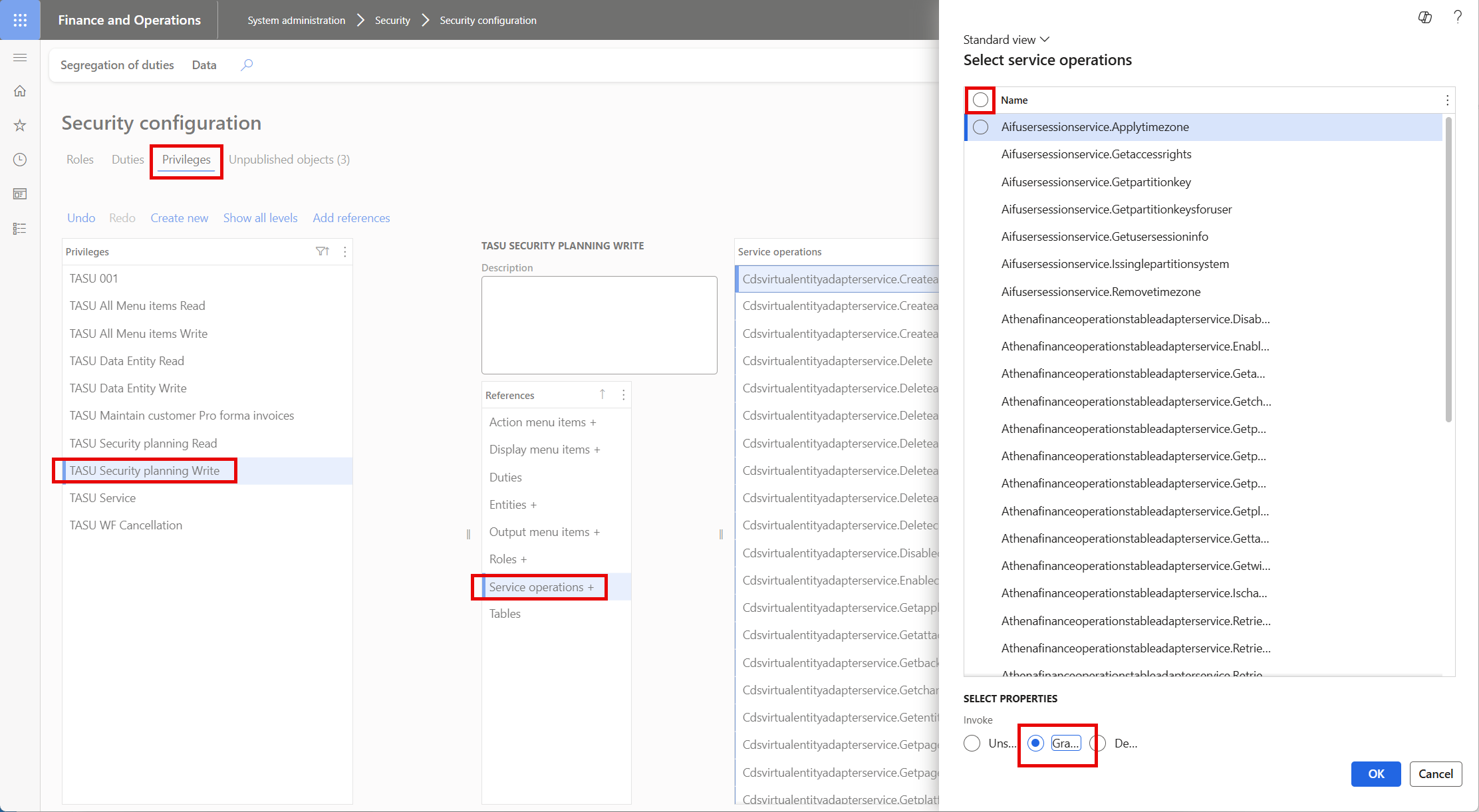
Then add Service operations: select all rows and set Invoke to Grant.
Expect long waits, and check the entities afterward. Each Add references call with thousands of objects runs for a while, showing "Please wait. We're processing your request." In the walkthrough, adding all entities to the Write privilege failed twice with "We've lost your connection" and had to be repeated. Add entities after the menu item types, and then check that Entities + shows the references were saved.
Publish the privileges
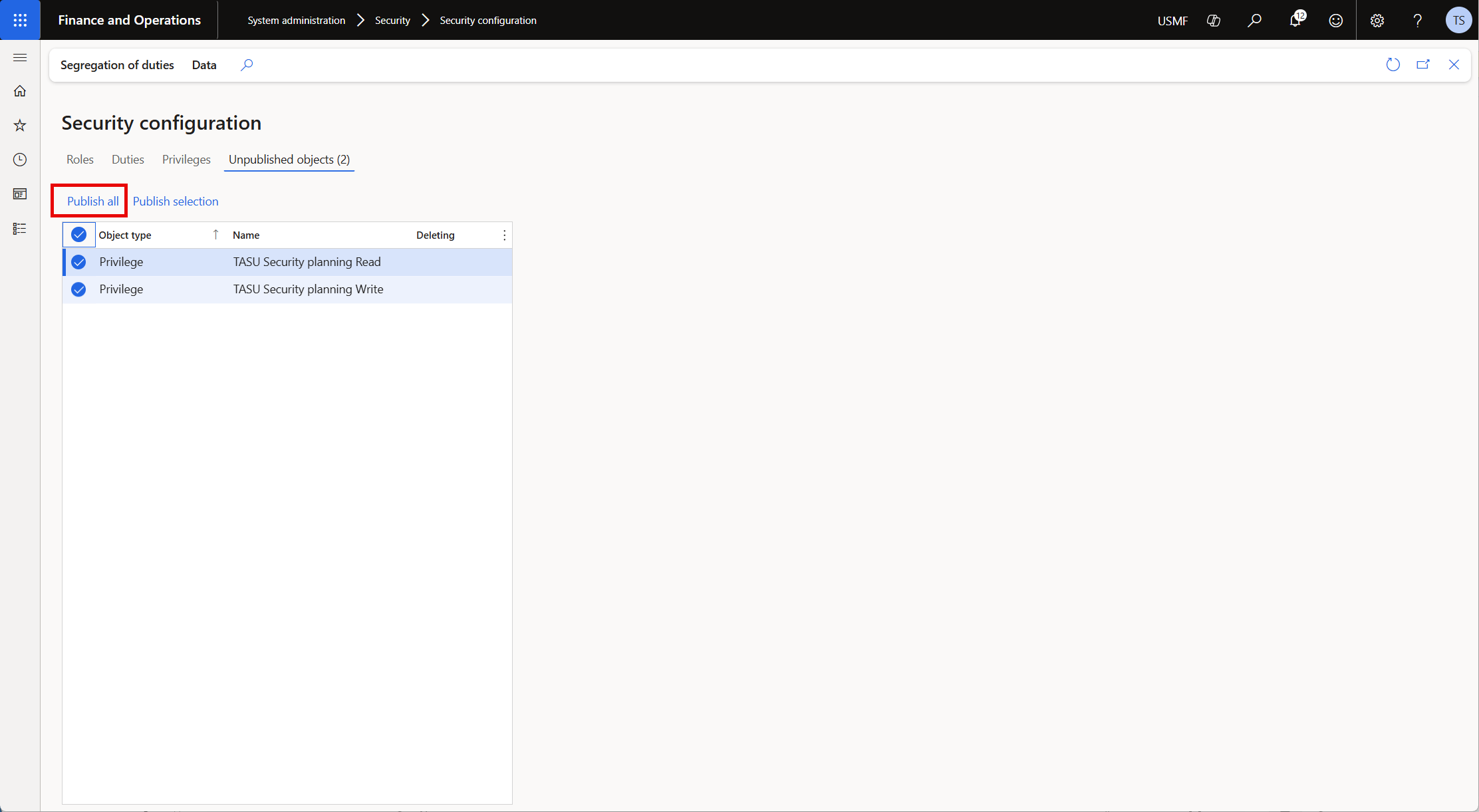
Open the Unpublished objects tab. It lists the two new privileges. Select Publish all and confirm with Yes.
Run the assessment and export the lookup
Run the license assessment. The presenter ran it for the environment in the Power Platform admin center, where the Finance and operations user license report is under Billing > Licenses > Finance and operations. Changes typically take 2 to 8 hours to reach the reports, as the banner on Licenses usage summary says.
Then go to System administration > Security > Security governance > Licenses usage summary.
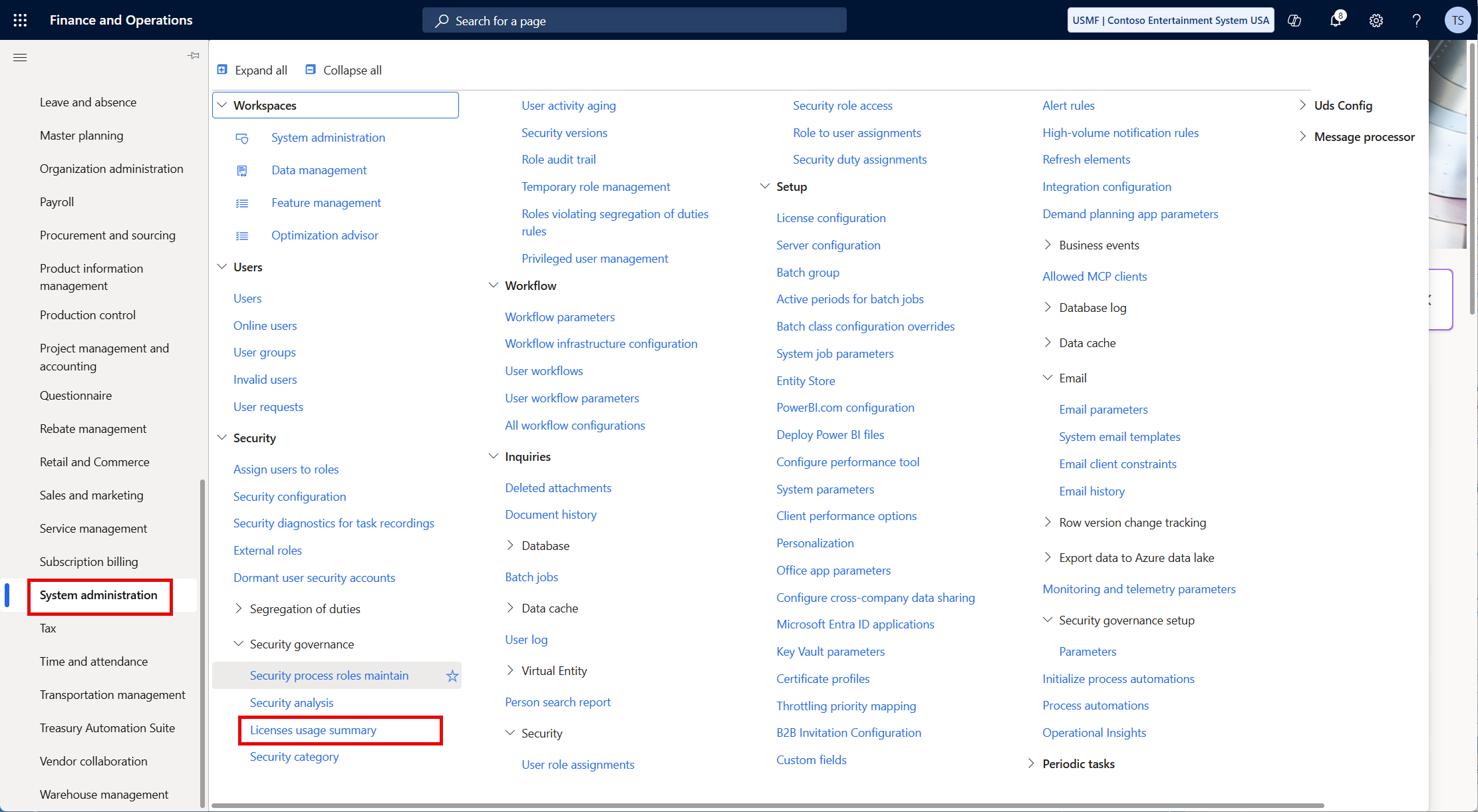
Select Security object licenses. Filter Privilege name on the two planning privileges, and filter Access level on Read or Write. Check that rows for both privileges appear; if one is missing, it hasn't been published or assessed yet.
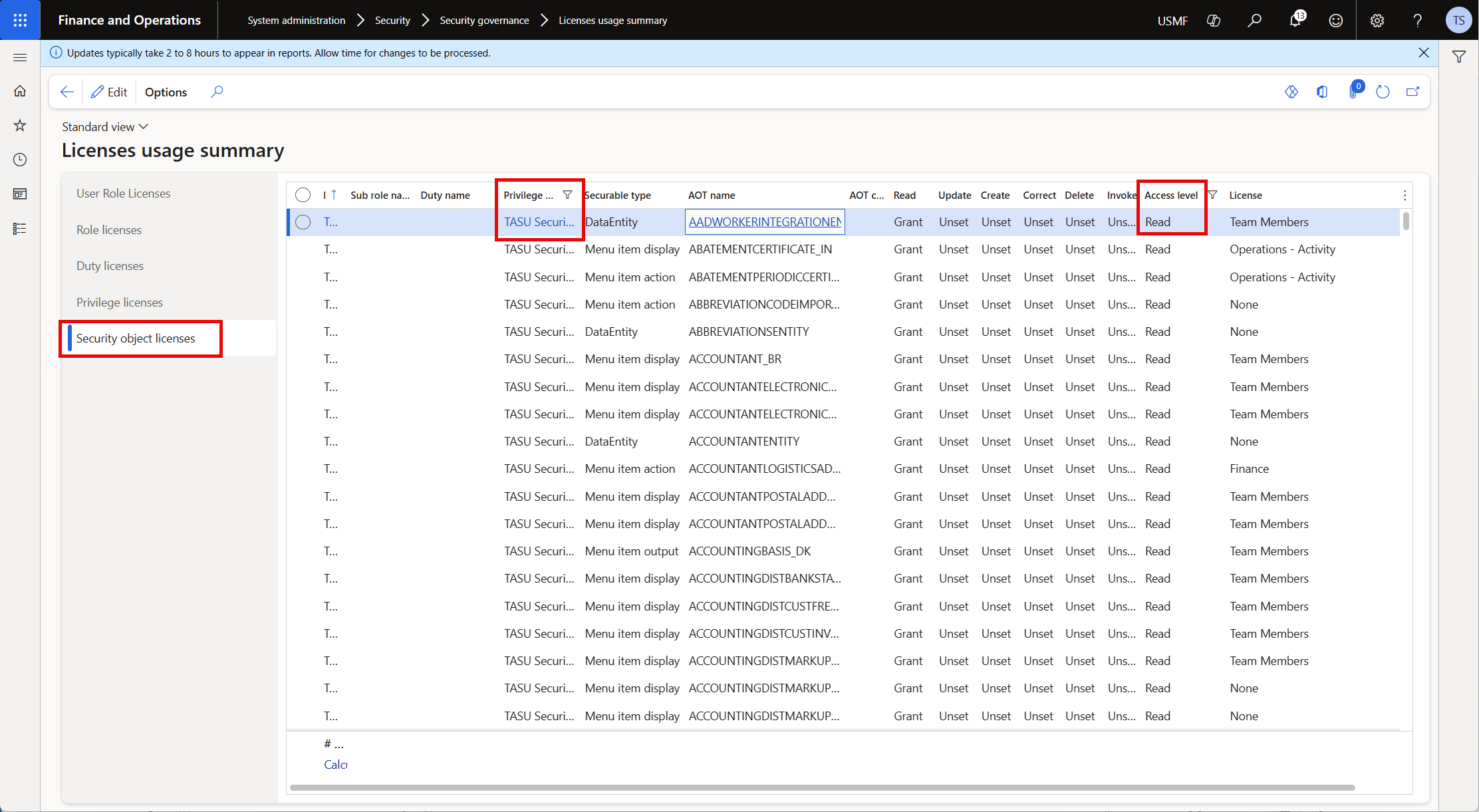
Select Open in Microsoft Office to export the view to Excel. By default an export stops at 50,000 rows, so raise the limit first: System administration > Setup > Client performance options, field Maximum number of rows to export to Excel, up to 1,000,000. The two planning privileges alone gave about 51,300 rows across both access levels, already above the default. Then compare the reference counts of your two privileges, to catch objects that didn't make it into one of them.
Use the lookup to price a change
Once the lookup exists, planning takes a few minutes:
- List the security objects the new or changed privilege will grant, with the securable type and the access level for each. Task recorder is a good way to find them; the previous tutorial in this series shows how.
- Look up each object by securable type, AOT name, AOT child name, and access level in the exported lookup, or in Security object licenses filtered on the planning privileges.
- Read the License column. Any user who gets the privilege needs a license, or a base license plus attach licenses, that covers every object on your list. "Finance or Supply Chain Management" means either one covers it.
- If an object pushes the license up, look for an alternative: grant Read instead of Write where that's cheaper and enough, or use a different menu item or document that needs a cheaper license.
- For a read-only downgrade, check every paid object the users hold, not only the one you plan to change. The companion article explains why.
- Share the result with the business before the privilege is built.
Here's what that looks like in practice. The previous tutorial added pro forma invoice access to a Customer service representative role. The pro forma invoice menu items need Finance, so the role moved from Operations - Activity to Finance. With the lookup, that answer is visible before any role is changed.
Recommendations and common pitfalls
Rebuild the lookup after each major update or new ISV solution: Add references selects only the objects that exist at that moment, and licenses are Microsoft metadata that can change. Build it in a test environment with the same version and models as production. Keep the two planning privileges for planning only, out of any role that real users hold; leave them in place if you plan to rebuild the lookup later. And use the securable type, AOT name, and AOT child name as the key, because the same name can carry different licenses as a display and as an action menu item.
The pitfalls are mostly about trusting the wrong data or the wrong state. Concluding that Read is cheap from production data, when production rows show Read licenses only where Read is already granted. Building the lookup in production. Granting Read on service operations, which only have Invoke. Expecting results right away, or forgetting to publish: nothing is assessed until the privileges are published and the assessment has run. And assuming the reference lists were saved after an error; check each reference type, especially Entities, after a connection error or a timeout.
This lookup comes from one test environment, on 10.0.49, with one ISV solution installed. Licenses are Microsoft metadata and can change between versions, so build your own on your version before you quote a number. It also leaves out form controls and data entity methods, which the References list can't add, and tables unless you add them the same way, so objects of those types need their own check.
The checklist
- In a test environment, Create version and wait for Ended.
- Create new privilege, planning Read. Add all action, display, and output menu items, and then all entities, with Read = Grant only.
- Create new privilege, planning Write. Add the same types with Read and Update = Grant, and all service operations with Invoke = Grant. Check that the entities were saved.
- Publish all, and check that Unpublished objects shows (0).
- Run the license assessment and wait for the reports to update, typically 2 to 8 hours.
- Raise the Excel export limit, open Security object licenses, filter on the planning privileges, check that both appear, and export.
- For each planned change, look up its objects by type, name, child name, and access level, and share the license impact with the business.
| Task | Path |
|---|---|
| Create privileges, publish | System administration > Security > Security configuration |
| Save or restore a snapshot | System administration > Security > Security governance > Security versions |
| License per security object | System administration > Security > Security governance > Licenses usage summary > Security object licenses |
| Export limit for Excel | System administration > Setup > Client performance options |
| Enable the features | System administration > Workspaces > Feature management |
| License assessment across environments | Power Platform admin center: Billing > Licenses > Finance and operations |
Build it once in a test environment and you have a license lookup for every menu item, entity, and service operation in your build. After that, "will this raise the license bill?" is a filter you run before the privilege exists, not a surprise on the next license report.
Related reading: swapping Write for Read doesn't always lower the license reports what this lookup showed, pro forma invoices without posting rights is the build this lookup would have priced in advance, how a license requirement rolls up from a single entry point and how one extra privilege triggers an attached license explain how the per-object answers add up to a user's license, and our earlier look at read-only access covers the same lever across all menu items. If the object names here are new to you, start with how Dynamics 365 actually bills you and the glossary.