About this video
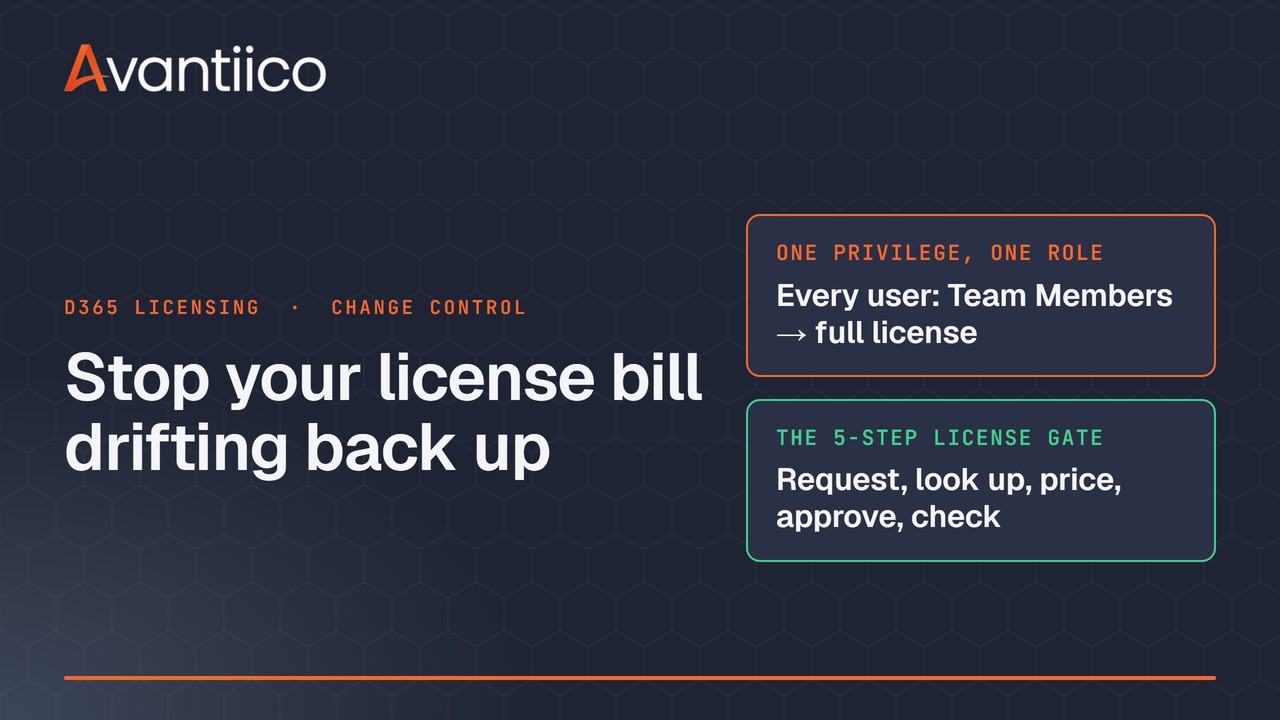
Before you add menu items to a new privilege, the business asks one question: will this raise the license bill? This walkthrough builds a license lookup once, in a test environment, so you can price any new privilege in Dynamics 365 Finance and Supply Chain Management in minutes.
It creates two planning privileges. One grants Read on all action, display, and output menu items and data entities. The other grants Write on the same objects, plus all service operations. Once both are published and the license assessment has run, the Security object licenses view states the license of every object at Read and at Write, and you export it.
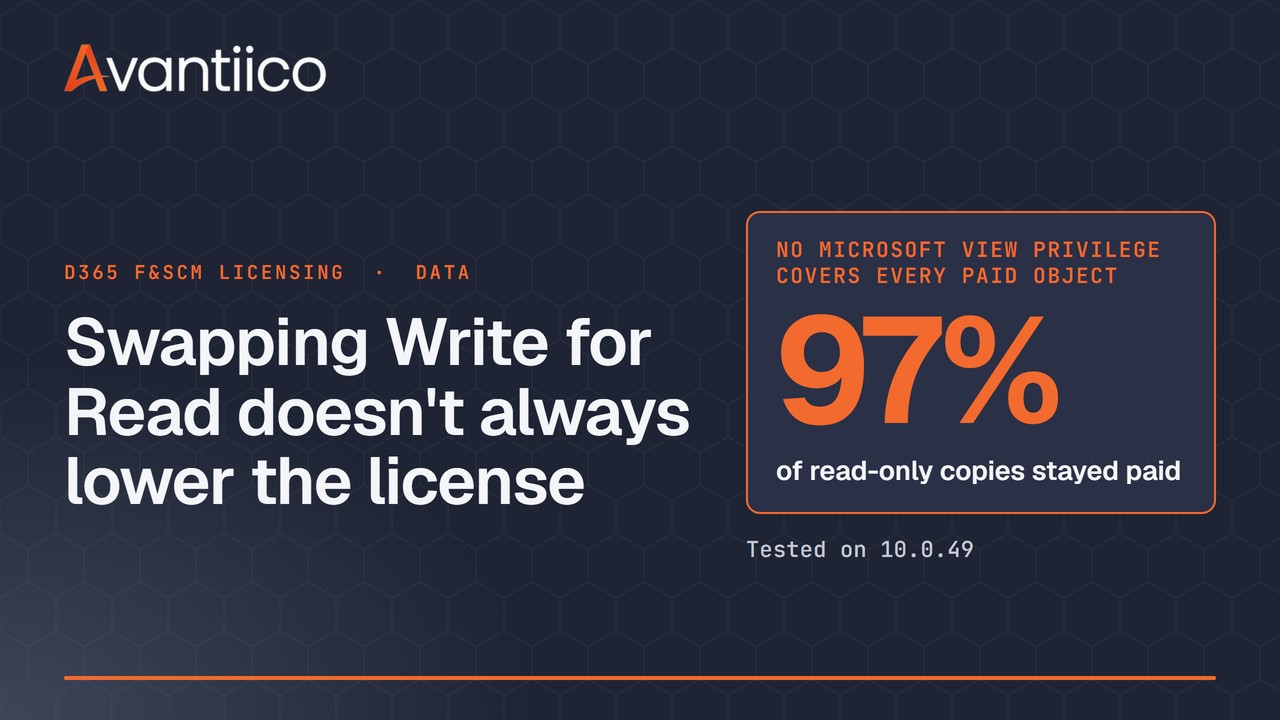
Then pricing a privilege is a lookup: list the objects it grants and look each one up at the access level you plan to grant. One object at Finance means Finance. Don't assume Read is always cheap, because a read-only privilege you build yourself can still need a paid license.
Use a test environment with the same version, models, and ISV solutions as production, never production itself, and save a security version first.
Chapters
- 0:00The question
- 0:15Before you start
- 0:38Step 1: Read privilege
- 0:54Step 2: Add references at Read
- 1:24Step 3: Write privilege
- 1:53Step 4: Publish
- 2:03Step 5: Role and test user
- 2:16Step 6: Read and export the lookup
- 2:38Pricing a new privilege
- 3:04Full guide
At 2:03 the video adds both privileges to a role and assigns it to a test user. The written guide has since dropped that step: publishing the two privileges and running the license assessment is enough.