
A start-here guide for finance, IT, and security leaders who need to understand D365 licensing without becoming experts in it.
If you own the budget or the risk for a Dynamics 365 Finance and Supply Chain environment, you have probably been handed a user count and a per-user price and told to multiply. That math is almost always wrong, and usually wrong in your favor if you know what to look for. The reason is simple to state and surprisingly deep: Microsoft does not bill you for the roles you assign. It bills you for what each person can do. This primer explains every concept the rest of our articles assume, in plain language, with a small example for each. Read this once and the rest will click.
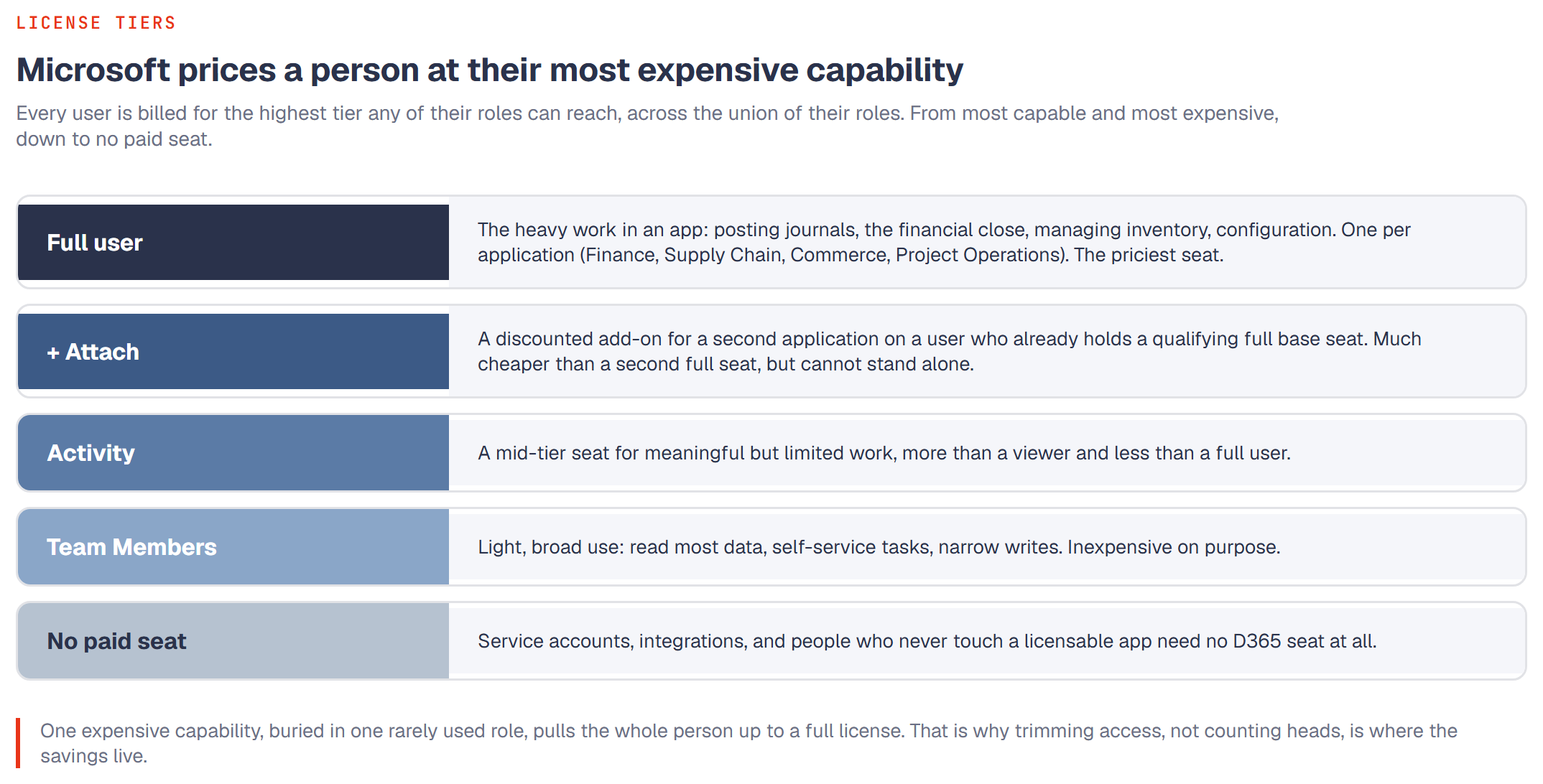
The four ways a person can be licensed
Think of D365 licenses as tiers, from most capable (and most expensive) to least.
Full user licenses. These are the "real" seats. Each application has its own full license: Finance, Supply Chain Management, Commerce, Project Operations, and so on. A full seat lets a person do the heavy work in that app, such as posting journals, running the financial close, managing inventory, or configuring the system. These are the priciest licenses.
Illustrative example: a full Finance seat might list around $180 per user per month, while a full Supply Chain seat lists at a similar level. (All prices here are illustrative round numbers, not quotes. Always confirm against the current Microsoft price list.)
Attach licenses. An attach license is a discounted add-on. If a person already has one qualifying full "base" license, you can add a second application to them at a much lower attach price instead of paying full freight twice. The catch is in the name: an attach seat cannot stand alone. It must be attached to a base full seat.
Illustrative example: a user who needs both Finance and Supply Chain might pay roughly $180 for a Finance base seat and roughly $30 for a Supply Chain attach seat, rather than $180 plus $180. Same access, much lower cost, purely because you ordered it as base-plus-attach.
Activity licenses. Some products offer a mid-tier seat for people who do a meaningful but limited slice of work, more than a casual viewer but less than a full user. Project Operations, for example, has a lighter tier for team members who enter time and expenses but do not manage projects.
Team Members. This is the inexpensive tier for light, broad use across the organization: reading most data, entering their own time off, updating their own records, and other narrowly defined tasks. It is cheap on purpose and comes with real limits on what it legally and technically permits.
Illustrative example: a Team Members seat might list around $8 per user per month. The savings are large, which is exactly why Microsoft is strict about what qualifies.
No paid seat. Not everyone in your directory needs a D365 license at all. A person who only ever touches a Power BI report, or who exists in the tenant for other reasons, may need no D365 seat. Counting these people as licensed users is one of the most common ways organizations overpay.
The one idea that matters most: Microsoft bills per user, not per role
Here is the concept that trips up almost everyone. In D365, you grant access by assigning security roles to people. A person often has several roles. It is natural to assume each role carries a cost. It does not.
Microsoft looks at the person, gathers up everything all of their roles let them do (the union of their roles), finds the single most expensive capability anywhere in that pile, and prices the person at that level. One expensive capability, buried in one rarely used role, pulls the whole person up to a full license.
Illustrative example: Dana has three roles. Two are light, read-mostly roles that on their own would fit a Team Members seat. The third role, assigned two years ago for a project that ended, includes the ability to post a vendor payment. That single capability requires a full Finance license. Dana therefore costs a full seat, roughly $180 per month in our illustrative numbers, not the roughly $8 you might expect from a glance at her day-to-day work. Remove that one stale capability and Dana may drop to a far cheaper tier.
Multiply that pattern across hundreds of users and you see why the "user count times price" estimate is almost never the real bill, and why trimming access is a direct line to savings.
The building blocks: privilege, duty, role, entry point, securable
To find those expensive capabilities, you need the vocabulary Microsoft uses under the hood. From smallest to largest:
- - Securable. The specific thing being protected: a particular screen, a button, a report, a data field, a service. If access to it can be controlled, it is a securable.
- - Entry point. A door to a securable. The same action might be reachable from a menu item, a button, or an API call. Each door is an entry point, and each can carry its own permission.
- - Privilege. The smallest unit of permission you actually grant. A privilege bundles a few entry points with a level of access, for example "view the customer record" or "post a sales invoice."
- - Duty. A group of privileges that together make up a business task, such as "maintain customer master data" or "process vendor payments." Duties exist so you assign work, not individual clicks.
- - Role. A collection of duties that matches a job, such as "Accounts Payable Clerk." Roles are what you assign to people.
Illustrative example: the role "Accounts Payable Clerk" contains the duty "process vendor payments," which contains the privilege "post payment journal," which is reachable through an entry point (the Post button) on a securable (the payment journal page). The license tier is ultimately decided down at that privilege-and-entry-point level, then rolled all the way back up to the person.
Read-only versus write, and what it costs
A reasonable instinct is "if they can only look, it should be cheap." Sometimes that is true. Read-only access often qualifies for a lower tier such as Team Members. But not always. Certain data and certain screens require a higher tier even just to view, and some read scenarios exceed what the cheap tiers permit. Treat "read is cheaper" as a frequent outcome, not a guarantee. The only way to know is to check the specific privileges involved.
Segregation of Duties (SoD), briefly
Segregation of Duties is a control idea, separate from cost but living in the same security data. The principle: no single person should control both halves of a transaction that could be abused together. The classic pair is creating a vendor and paying that vendor. One person who can do both could invent a fake supplier and pay it. An SoD conflict is when one person holds both sides of such a pair. Because conflicts come from the union of a person's roles, the same "look at the whole person" analysis that drives licensing cost also surfaces these risks. Several of our security articles build on this; for now, just hold the definition.
Why none of this shows up on a user list
A simple export of users and their assigned roles cannot tell you any of what matters here. It will not tell you each person's true license tier, because that depends on the single most expensive privilege across the union of their roles, computed privilege by privilege. It will not reveal attach savings you are missing, stale capabilities inflating seats, or SoD conflicts hiding across role combinations. All of that has to be computed by walking from people down to privileges and entry points and back up. That computation is the whole point of the work, and it is why a plausible-looking user list and a right-sized license bill are rarely the same thing.
Frequently asked questions
If I remove one role from a user, will their price drop?
Only if that role held the single most expensive capability they had. If another role still grants something at the same tier, the price stays. You have to look at the union of what remains, not the one role you removed.
Is Team Members just "read-only"?
No. Team Members allows a specific, limited set of actions, including some writes, and excludes plenty of read scenarios. "Read-only" and "Team Members" overlap but are not the same thing. Check the actual privileges.
We have 500 people in the tenant. Do we need 500 seats?
Almost certainly not. Some need full seats, many fit cheaper tiers, some qualify for attach pricing, and some need no D365 seat at all. The right number comes from computing tiers, not counting heads. (See the companion piece on how a large share of the "users" on a tenant need no paid seat at all.)