
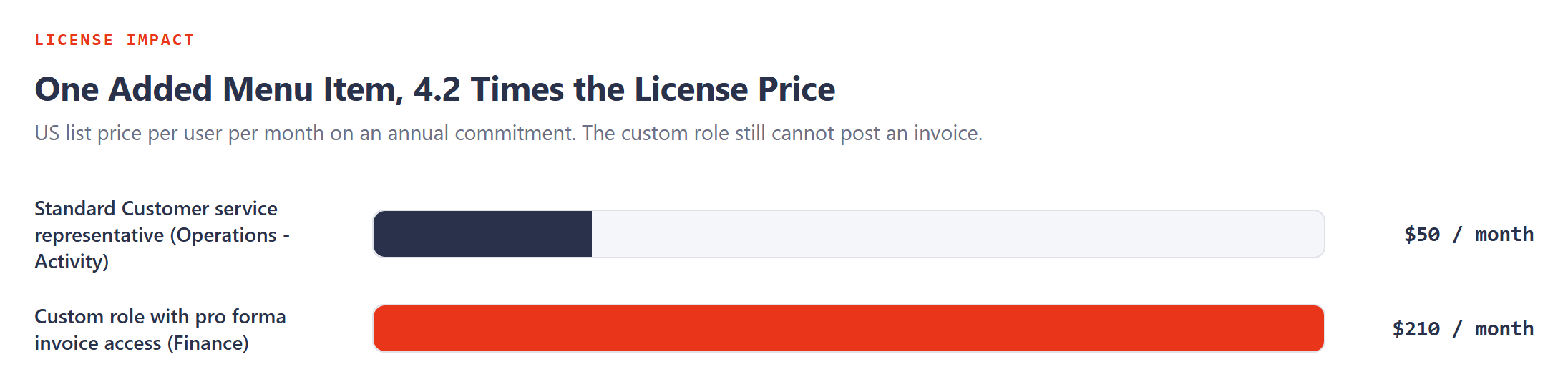
Giving a customer service representative the Pro forma invoice button in Dynamics 365 Finance and Supply Chain Management moves that user from an Operations - Activity license at $50 a month to a Finance license at $210, even when the same role is built so the user can never post a real invoice. That is the finding from a walkthrough we recorded in a Microsoft demo environment, and it is the reason the license check in this tutorial is a step, not an afterthought.
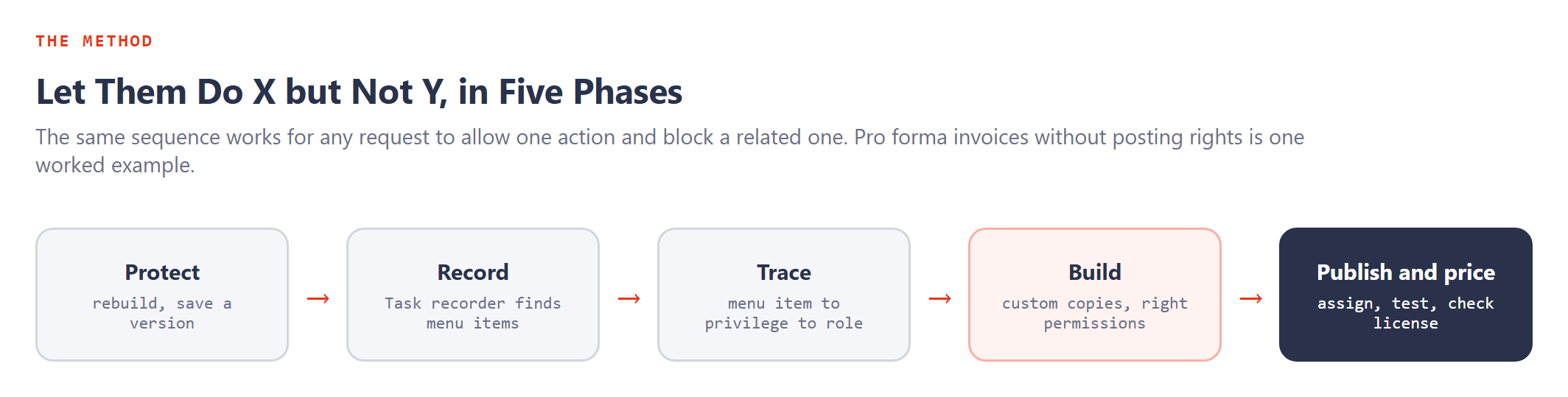
The request behind it is common: "Let our service reps send customers a draft invoice, but don't let them post one." This guide builds that role in ten steps, from the first safety snapshot to the license report at the end, with the key screens shown. The method is the same for any "let them do X but not Y" request, so the pro forma case is a worked example rather than the only thing you can do with it.
Everything below was recorded in Microsoft's USMF demo company with Contoso data, and all screenshots come from that environment. The custom objects carry the presenter's initials as a prefix. Use your own prefix, for example your company code, so your copies are easy to tell apart from Microsoft's standard objects.
The request, and the short answer
A customer's service representatives must be able to create a pro forma invoice for a sales order, a draft that shows the customer what the real invoice will look like. They must not be able to post an actual customer invoice. The customer also asked what this access would cost in licenses.
| Question | Answer from the walkthrough |
|---|---|
| Can the role create pro forma invoices but not post invoices? | Yes, by design. Build a custom privilege that grants the pro forma menu items and denies the invoice and invoice-posting menu items. Put it in a custom duty, and put the duty in a custom copy of the Customer service representative role. |
| Which standard objects are involved? | The privilege Maintain customer invoices (AOT name SalesFormLetter_InvoiceMaintain) and, in the demo environment, the duty Create customer invoice. The privilege grants the invoice and the pro forma menu items together, so it can't be reused as is. |
| What does it do to the license? | The menu item behind Pro forma invoice requires a Finance license, so the role moves from Operations - Activity (about $50 per user per month at US list price) to Finance (about $210), even though it still can't invoice. The walkthrough derived this from the menu item's own license; the license report itself takes hours to update. |
That last row is the main lesson. Draft access can cost as much as full access, because the license follows the security object, the menu item, not whether the user can post.
How roles, duties, privileges, and licenses fit together
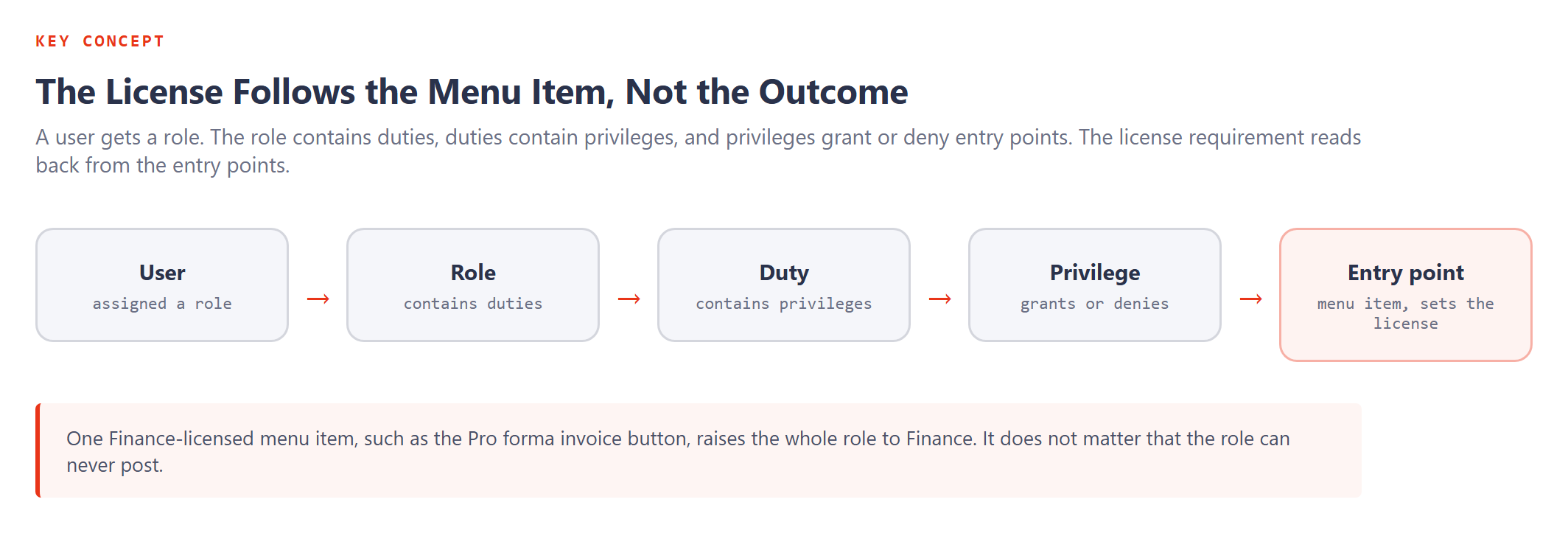
Four objects connect a user to a button on the screen. A user is assigned a role. The role contains duties, each duty contains privileges, and each privilege grants or denies access levels on entry points, which are the menu items, form controls, tables, and service operations users actually reach. The license a role needs reads back from those entry points. One expensive menu item can raise the license of the whole role.
| Term | Meaning |
|---|---|
| Security role | What you assign to a user, for example Customer service representative. A role groups duties, and sometimes privileges directly. |
| Duty | A group of privileges for one business task, for example Create customer invoice. |
| Privilege | The smallest unit you normally manage. It grants access levels on entry points, for example Maintain customer invoices. |
| Entry point | A menu item (display, action, or output), a form control, a table, a data entity, or a service operation. Users reach functionality through entry points. |
| Permission values | Each access level (Read, Update, Create, Delete, Correct, Invoke) is Unset, Grant, or Deny. Deny wins over Grant. |
| Unpublished objects | Roles, duties, and privileges you created or changed but haven't published yet. Users get changes only after publishing. |
| Pro forma invoice | A preview of the real invoice, prepared before posting. It posts nothing, has no legal or financial effect, and can be printed as often as you like. |
| Task recorder | A built-in tool that records the steps you take. Its .axtr file lists every menu item you touched, which tells you exactly what to secure. |
The security governance pages used below need version 10.0.43 or later and three features switched on under System administration > Workspaces > Feature management: User security governance, User security governance license usage summary, and the preview feature User security governance security object license view. Enable the preview view after the license usage summary feature. The preview view also needs a recent quality update on top of 10.0.43; Microsoft's page for it, source 03 below, lists the exact builds.
Rebuild the security analysis and save a version first
Do two things before you touch any security configuration. Both have saved us from a bad afternoon.
First, rebuild the analysis. The security governance analysis pages, including the Security object references you'll use later, read from a snapshot, not from live configuration. Go to System administration > Security > Security governance > Security analysis and select Rebuild. The banner on that page warns that the report data may be out of date until you do. Objects you create after the rebuild don't appear in these reports until you rebuild again; in the walkthrough, the duplicated role was missing from the Security object references for exactly this reason.
Second, save a security version. A version is a snapshot of the whole security configuration, and it's your way back if something goes wrong. Go to System administration > Security > Security governance > Security versions, select Create version, enter a Name and Description, for example the date, and select OK. Creation runs in the background. The Status column shows Executing, then Ended. Wait for Ended before relying on it.
Duplicate the standard role, never edit it
Microsoft updates standard roles, and edits to them make upgrades and troubleshooting harder. Work on a copy. Go to System administration > Security > Security configuration, open the Roles tab, and find Customer service representative (AOT name TradeCustomerServiceRepresentative). Select Duplicate, enter a name with your prefix, and leave Licensing SKU empty.
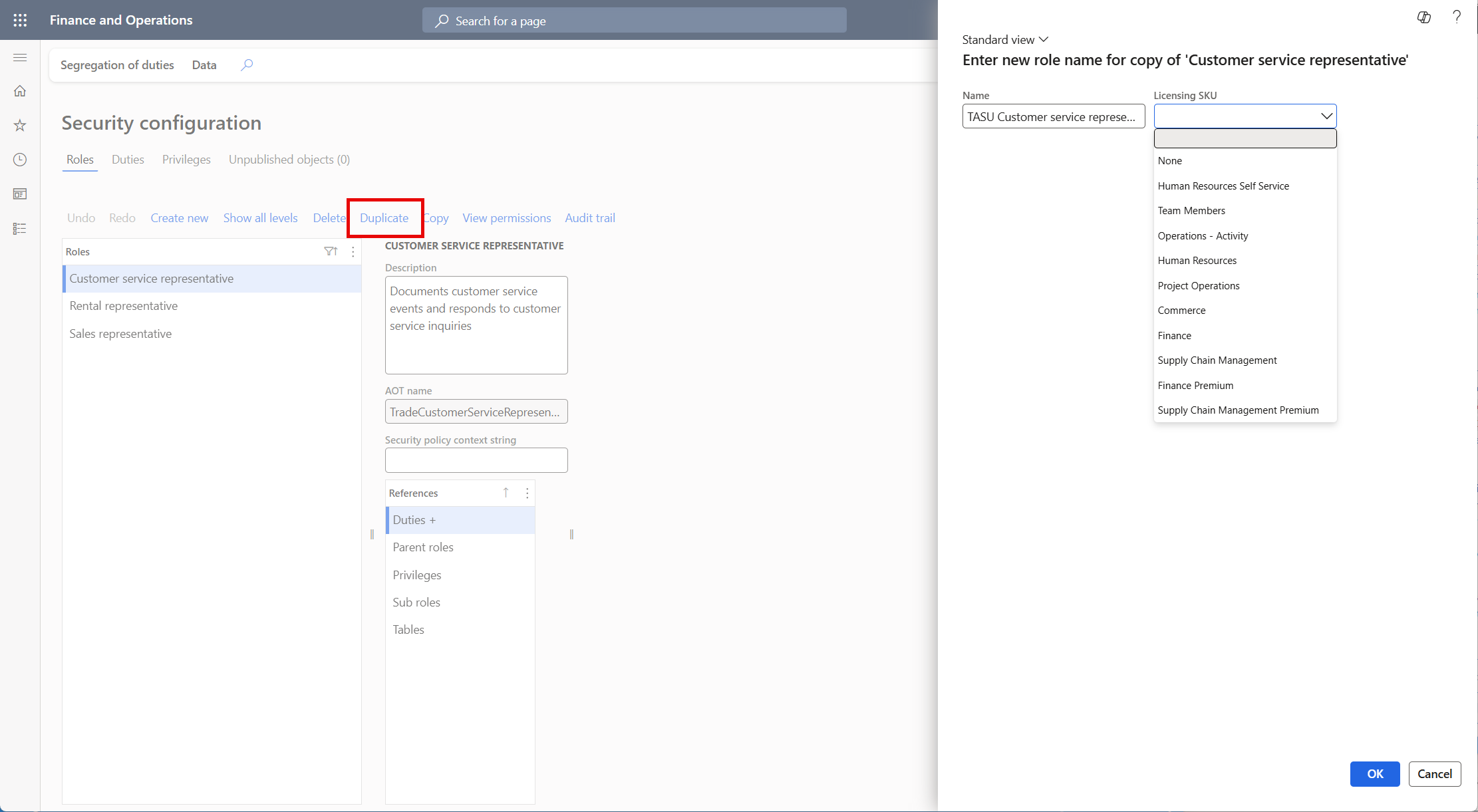
That Licensing SKU dropdown deserves a sentence, because it's a different tool for a different job. If you pick one SKU, such as Team Members or Operations - Activity, the copy keeps only the references whose entitlements are fully covered by that license and lists everything else in an Excluded References report. That's how you cut a role down to a cheaper license: a role spanning Finance, Supply Chain Management, and Project Operations can be trimmed to only its Supply Chain Management part. It works in one direction, keep one license and drop the rest, and here the goal was to keep the role's full content and add to it, so no SKU was chosen.
Record the task to find the exact menu items
To secure a function you need the exact menu items behind it, and the fastest reliable way to find them is to perform the task while Task recorder runs. Record both the action that should be allowed, the pro forma, and the one that should be blocked, the real invoice, so you can compare them.
Select Settings (the gear icon) > Task recorder, select Create recording, enter a Recording name such as Pro forma invoice creation, and select Start. Then go to Accounts receivable > Orders > All sales orders (or Sales and marketing > Sales orders > All sales orders) and select an order that hasn't been invoiced yet, with status Open order or Delivered. On the Action Pane, open the Invoice tab. The Generate group holds both Invoice and Pro forma invoice.
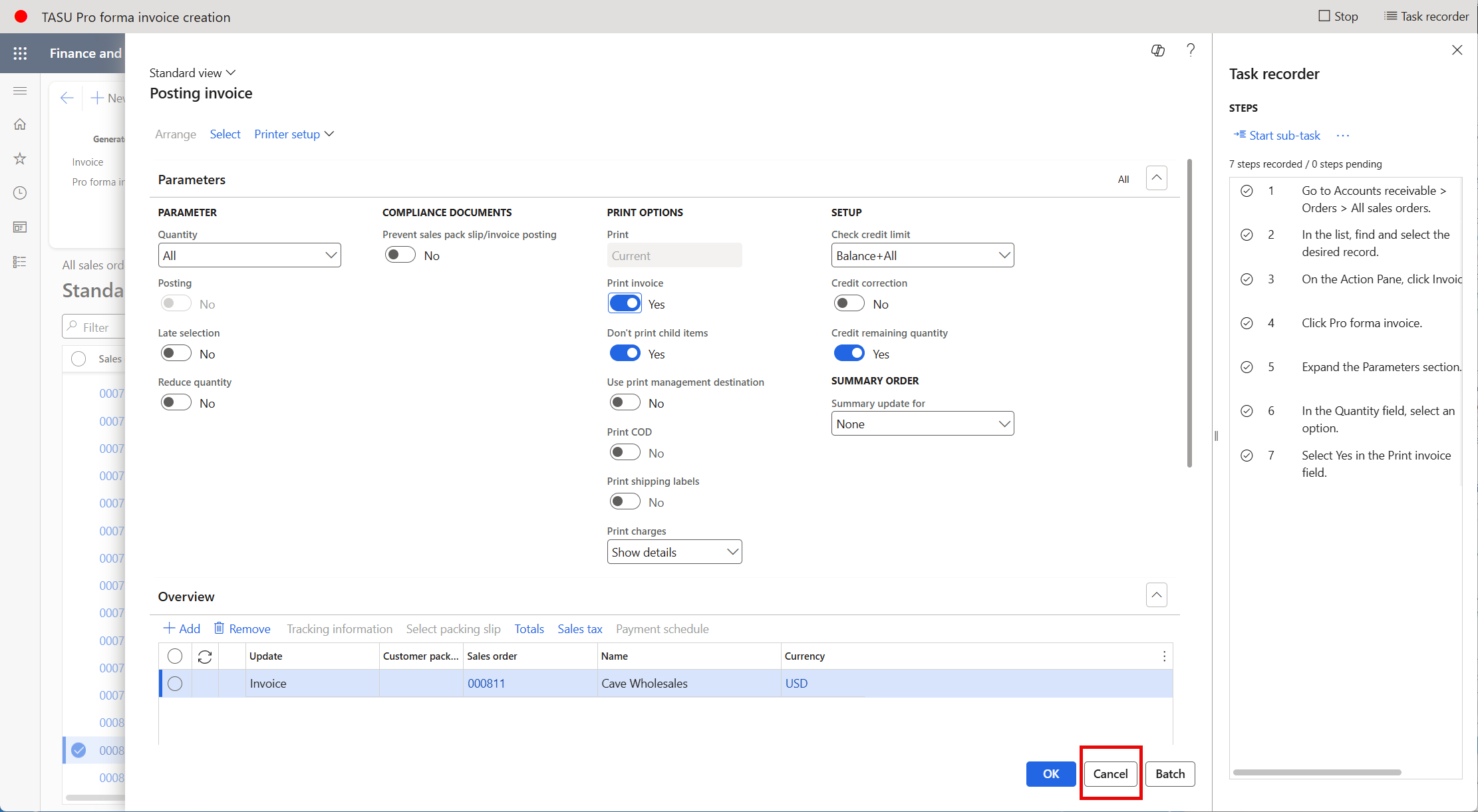
Select Pro forma invoice. The posting dialog opens, and the thing to notice is that Posting is grayed out and set to No: a pro forma can't post. You can check the quantity, the net amounts, and the invoice date, and print the document. You don't need to select OK, because the menu item was captured the moment the dialog opened. Select Cancel.
Still on the Invoice tab, select Invoice. In this dialog Posting is available and set to Yes. This is the real invoice that creates and posts the customer invoice journal, and it's the menu item you'll block. Select Cancel. Don't post anything.
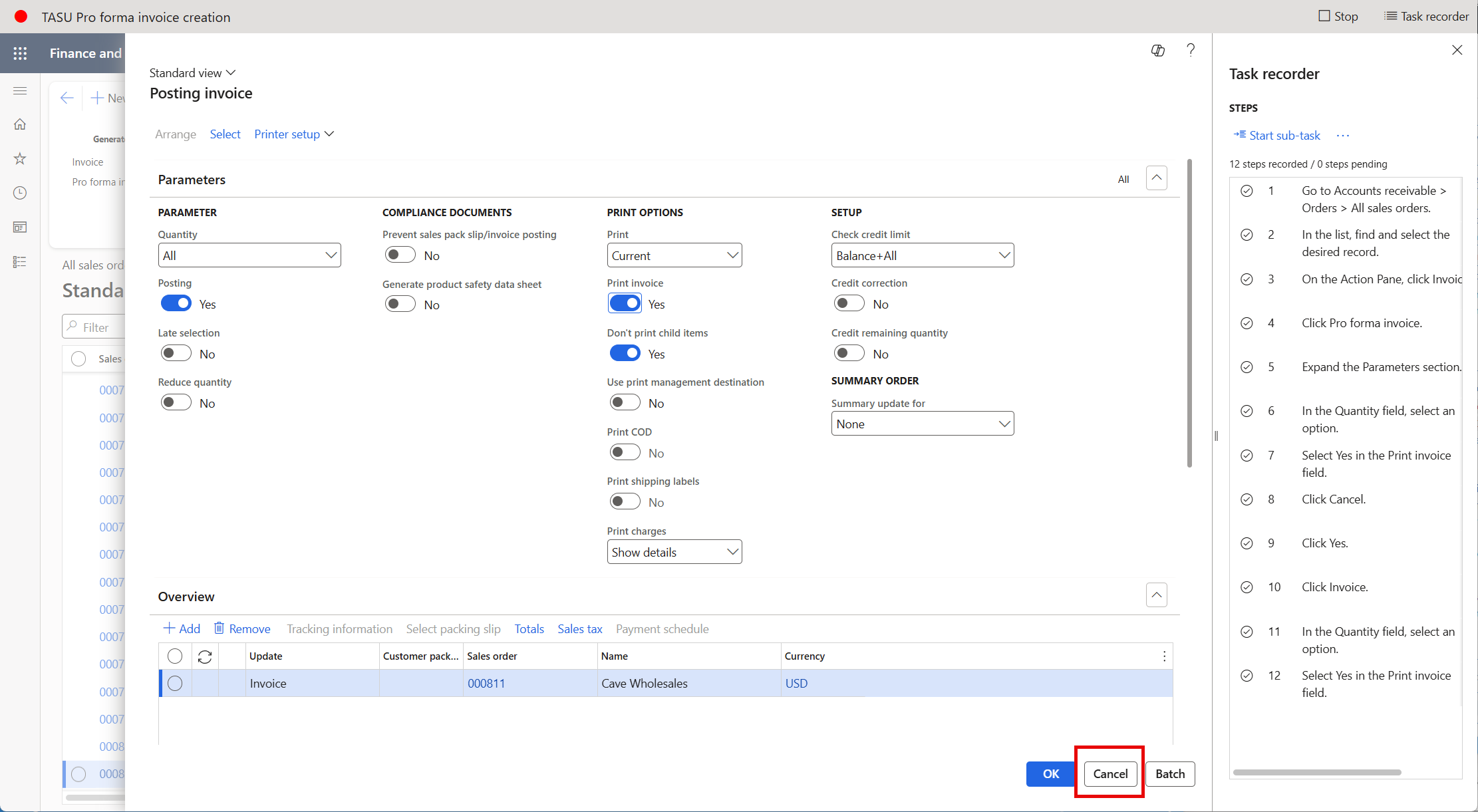
Select Stop in the recording bar, then Save to this PC. The recording downloads as an .axtr file. If you're curious what's inside, copy the file, rename the copy's extension from .axtr to .zip, and open it: recording_resource.xml is the readable list of steps, each with a GUID, and Recording.xml is the large file that records which form, control, and menu item each step touched. You don't need to read either, because the next step parses the file for you.
A pro forma invoice looks like the invoice, but it's a draft. It posts no invoice journal, creates no financial transactions, and carries no legal obligation, which is why Microsoft describes it as an estimate prepared before the invoice is posted. Leftover temporary pro forma data can be cleaned up under Sales and marketing > Periodic tasks > Clean up > Delete pro forma invoices manually.
Load the recording and trace who grants each menu item
The security governance tools can parse the .axtr file into a list of entry points and show who grants each one. Two short setup steps first. Go to System administration > Security > Security governance > Security category and create a category if none exists. Then go to System administration > Security > Security governance > Security process roles maintain, pick your category in the Security category field, select New process, and give it a name.
In Security tasks, open the ellipsis menu and select Load from Task Recording. Browse to the .axtr file and set three options: Include table permissions to Yes, Include surrounding controls permissions to No, and Include controls permissions to Yes. The middle one matters. You want the specific menu items you touched, not the controls around them; turn it on only when you want to see what else sits nearby. Select OK.
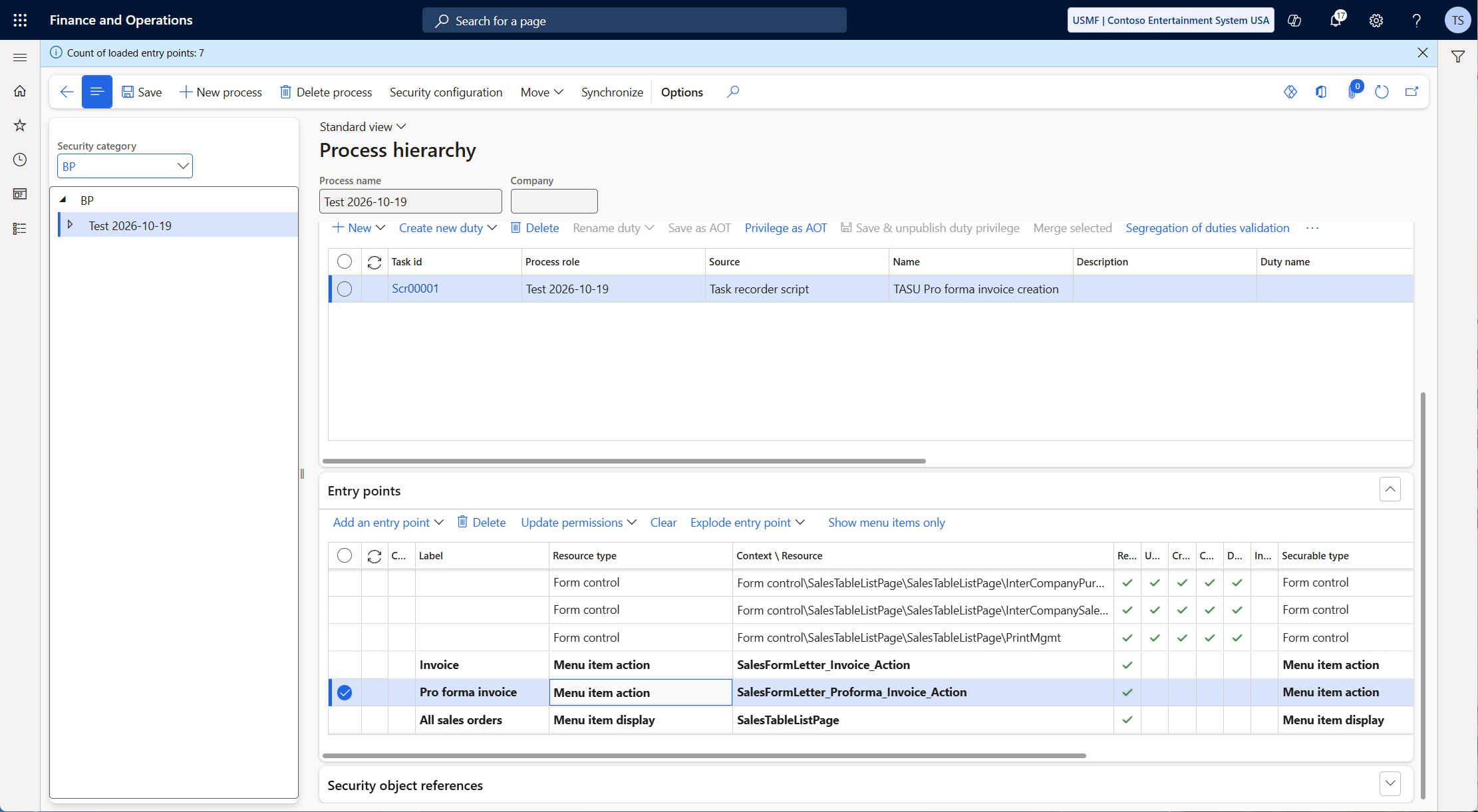
Entry points now lists what the recording touched. Select Pro forma invoice and open Security object references below it. Its Roles, Duties, and Privileges tabs show who grants the entry point, based on the analysis you rebuilt earlier.
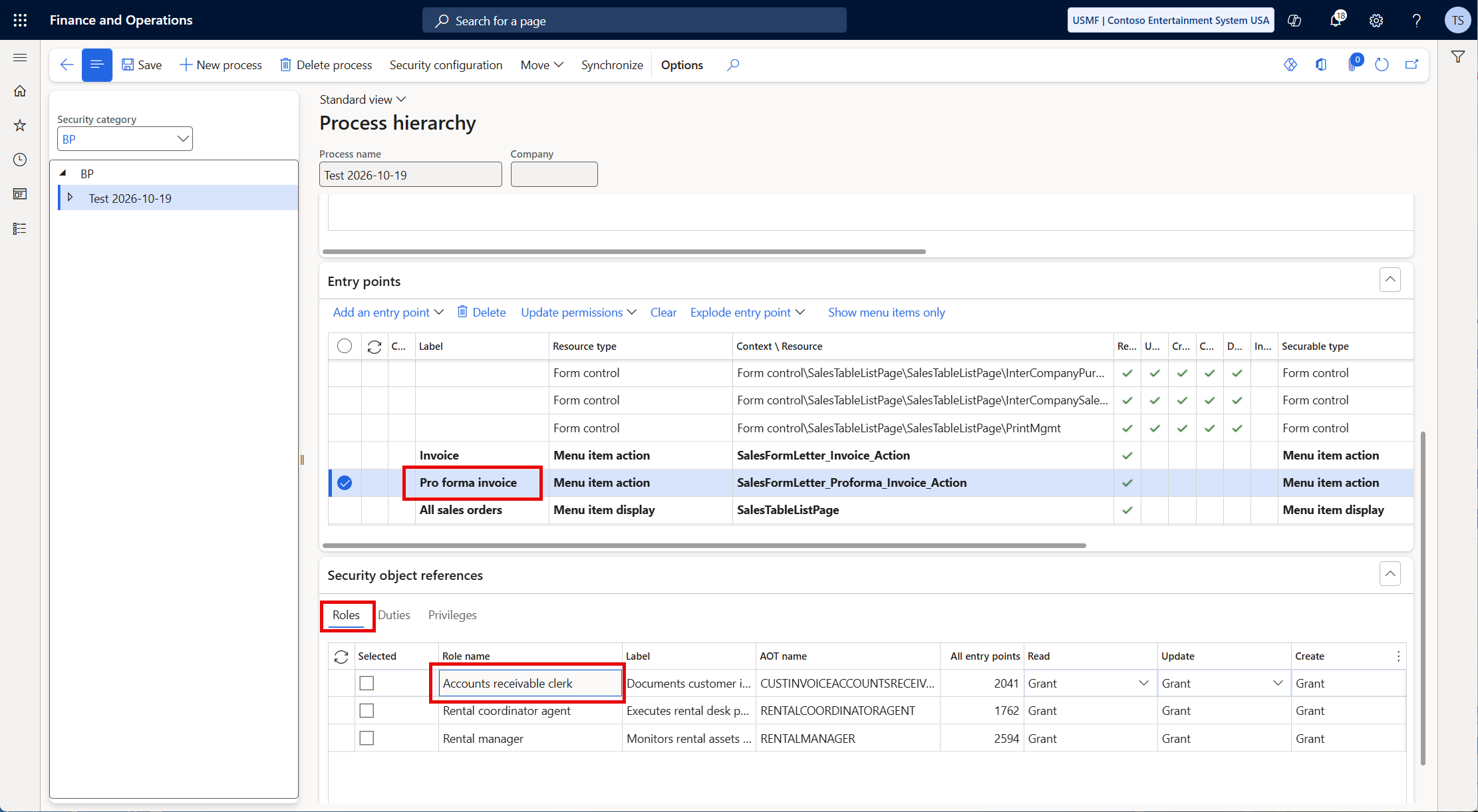
On the Privileges tab, the standard privilege that grants it is Maintain customer invoices, AOT name SalesFormLetter_InvoiceMaintain. Now select the Invoice entry point and check again. It's granted by the same privilege. That decides the design: you can't add Maintain customer invoices to the role as is, because it would bring real invoicing with it.
| Label | Resource type | Menu item |
|---|---|---|
| Pro forma invoice | Menu item action | SalesFormLetter_Proforma_Invoice_Action |
| Invoice | Menu item action | SalesFormLetter_Invoice_Action |
Build the custom privilege: grant pro forma, deny invoice
Go to System administration > Security > Security configuration, open the Privileges tab, and find Maintain customer invoices (description: Create and update customer invoices). Under References, select Action menu items. The list includes both the invoice items and the pro forma items. With the privilege selected, select Duplicate, enter your prefix followed by a name such as Maintain customer pro forma invoices, and select OK.
There are two ways to take the invoice away in the copy, and they behave differently. Agree on the choice with the business owner before you set a single radio button.
| Unset | Deny | |
|---|---|---|
| What it means | This privilege doesn't grant the access. | This privilege actively forbids the access. |
| If another role grants it | The user gets the access from the other role. | The user doesn't get it. Deny always overrides Grant, unless the user holds the System administrator role. |
| Use when | You only want this role not to give access. | The user must never have the access, whatever other roles they hold. |
| License note | Unset entry points don't drive a license requirement. | Deny doesn't consume a license by itself. But if another role grants the same object, that role's grant can still consume the license, even though the user's effective access is denied. |
In the walkthrough the customer chose Deny, so no other role can bring invoicing back for these users. In the new privilege, under Action menu items, select each invoice-related item and set every access level that is Grant (Read, Update, Create, Delete, Correct, and Invoke where granted) to Deny.
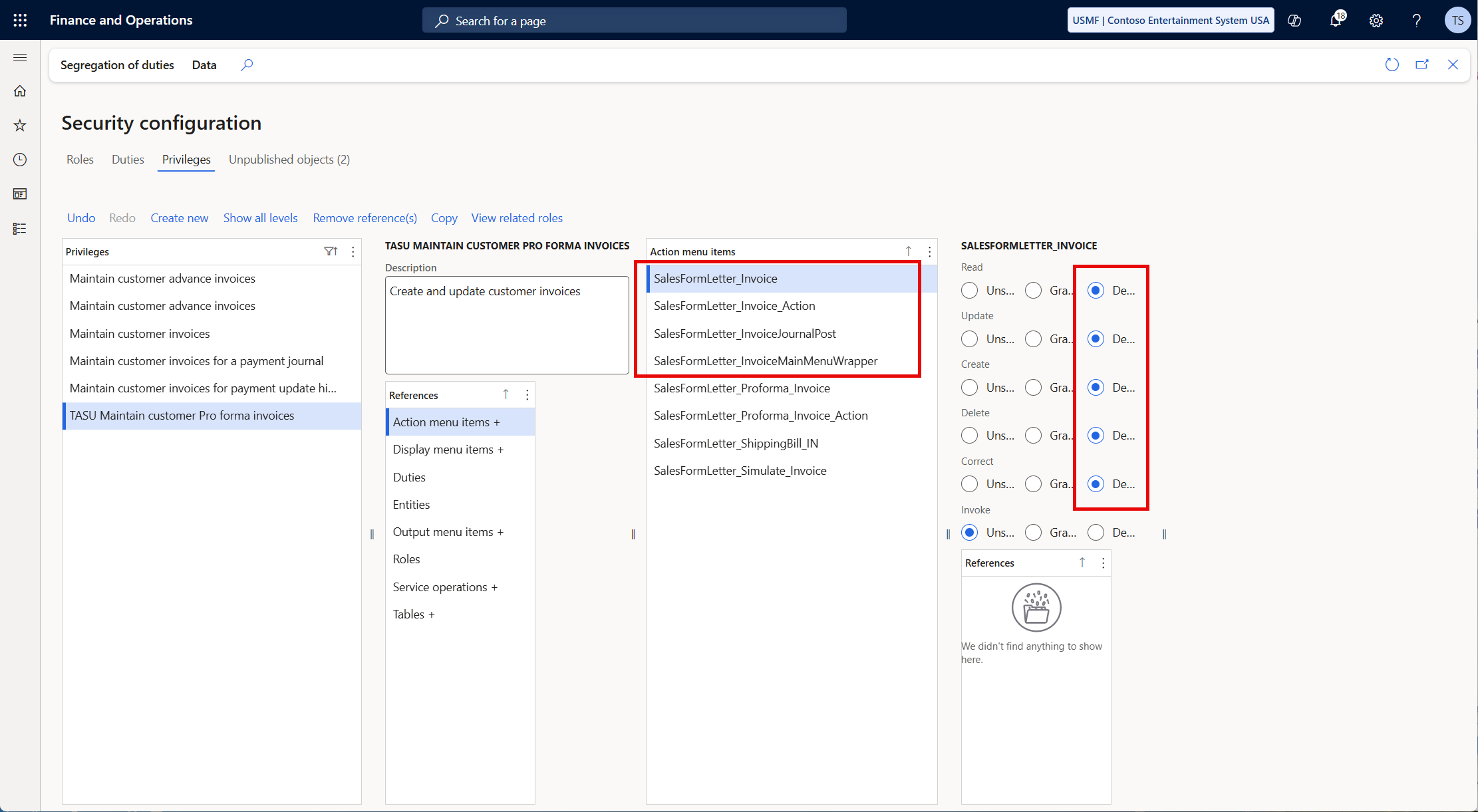
Leave the pro forma items, SalesFormLetter_Proforma_Invoice and SalesFormLetter_Proforma_Invoice_Action, at their original Grant.
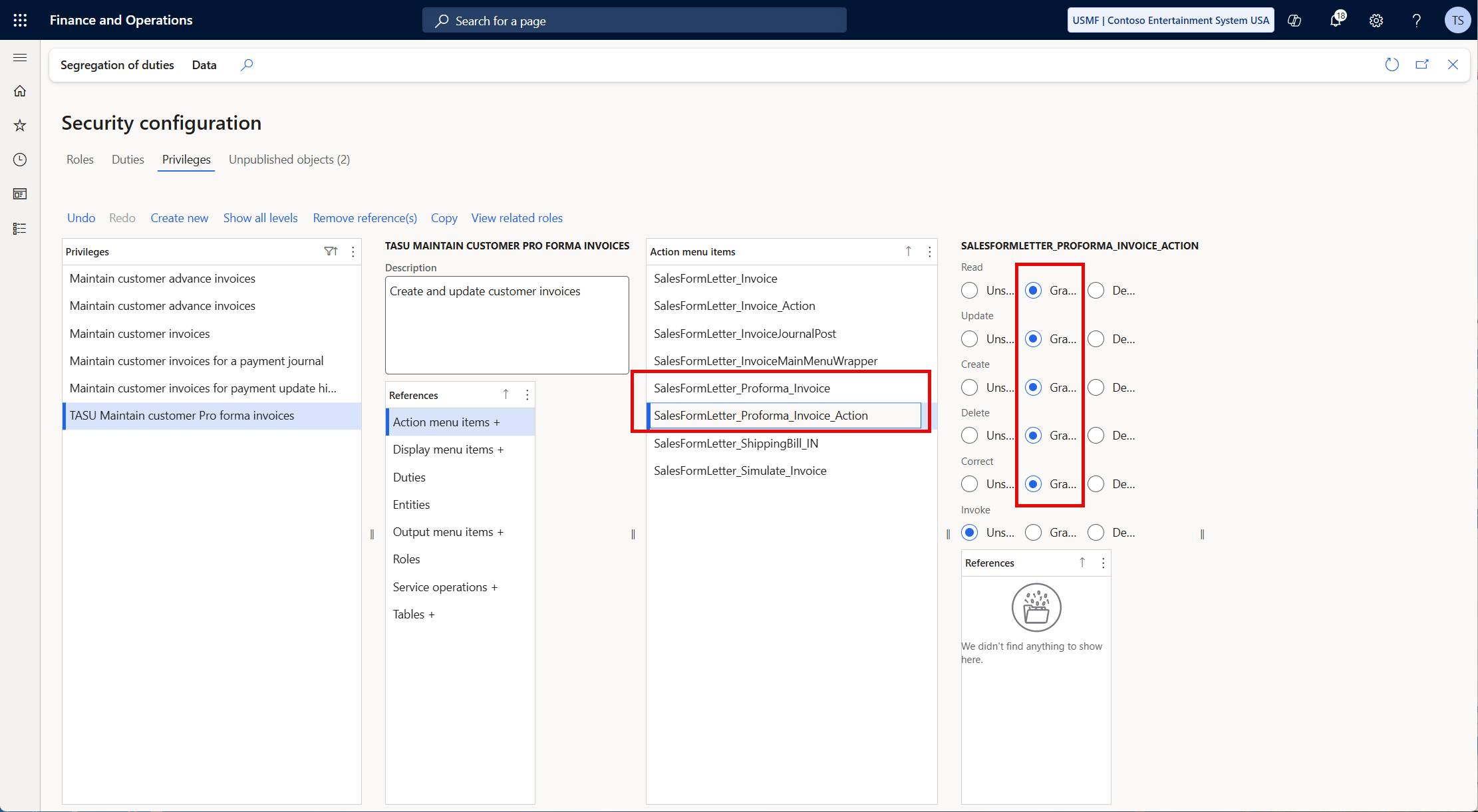
Here is the full list of action menu items in the standard privilege and the recommended setting for each. Base your own list on what your recording found and on what the business wants.
| Action menu item | Relates to | Recommended setting in the custom privilege |
|---|---|---|
SalesFormLetter_Invoice | Invoice | Deny (or Unset) |
SalesFormLetter_Invoice_Action | Invoice, the Action Pane button you recorded | Deny (or Unset) |
SalesFormLetter_InvoiceJournalPost | Invoice journal posting | Deny (or Unset) |
SalesFormLetter_InvoiceMainMenuWrapper | Invoice | Deny (or Unset) |
SalesFormLetter_Proforma_Invoice | Pro forma invoice | Keep Grant |
SalesFormLetter_Proforma_Invoice_Action | Pro forma invoice, the Action Pane button you recorded | Keep Grant |
SalesFormLetter_ShippingBill_IN | A localization item (the _IN suffix) | Decide per requirement |
SalesFormLetter_Simulate_Invoice | Invoice simulation | Decide per requirement |
Build the custom duty and link it to the role
A privilege reaches users through a duty, or directly through a role. Find the standard duty that holds Maintain customer invoices, copy it, and swap in your privilege. On the Privileges tab, with Maintain customer invoices selected, open References > Duties. It's used by two duties: Create customer invoice and Maintain customer invoice transactions.
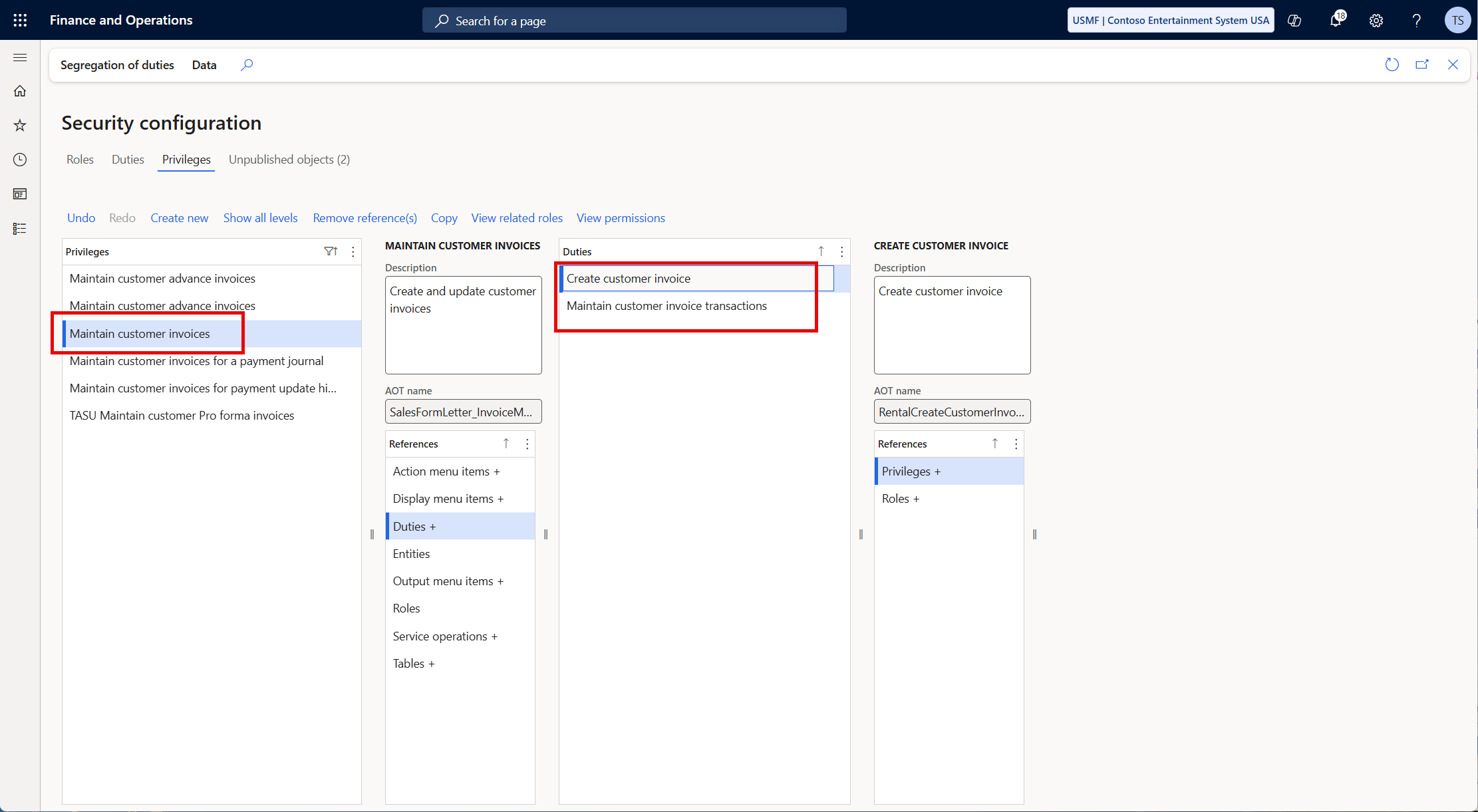
Create customer invoice is the right one to copy. It holds only two privileges, Maintain customer invoices and View customer invoice journal inquiry, so replacing the first with your privilege covers the requirement exactly.
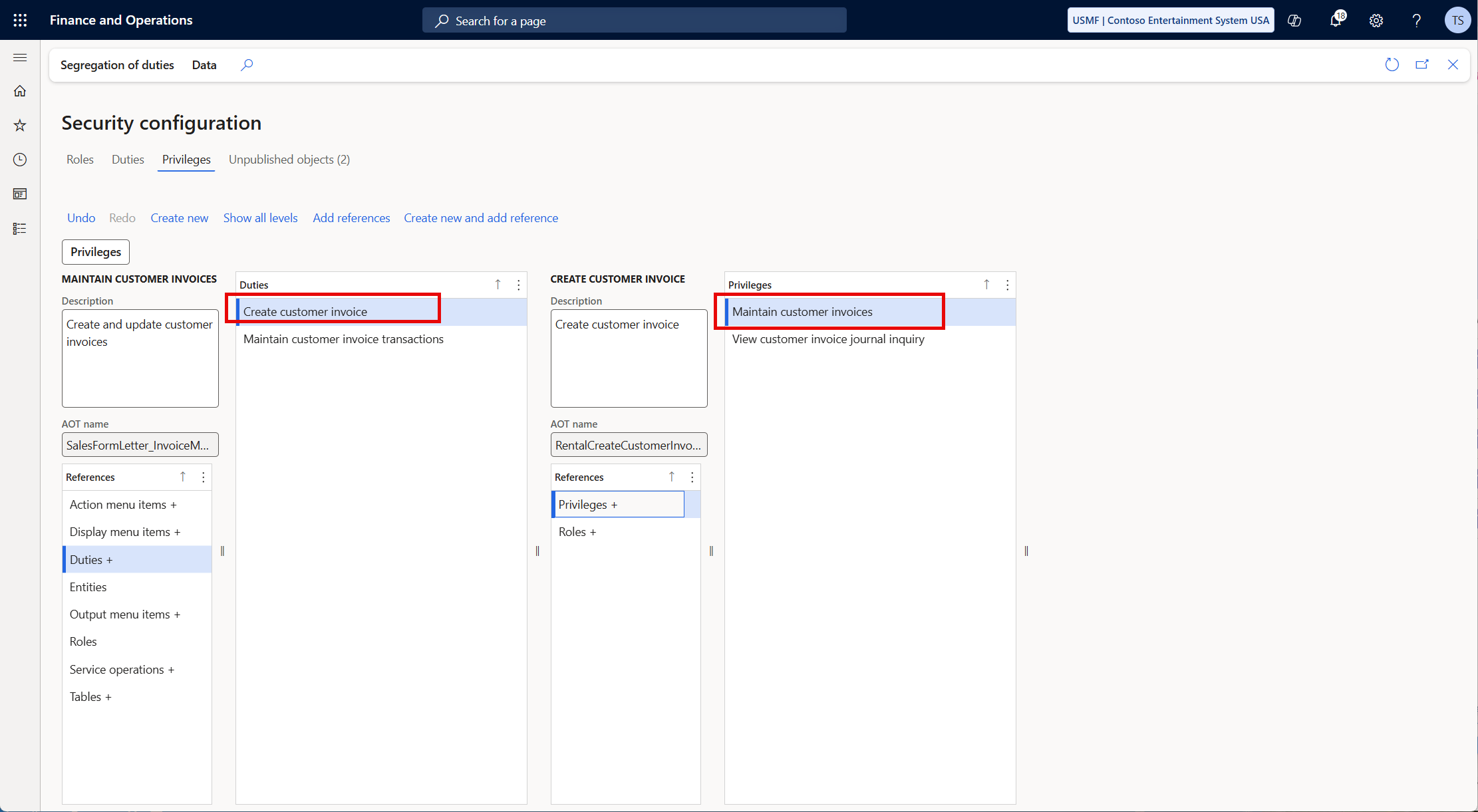
One demo-environment quirk to know about: this duty comes with the rental functionality (its AOT name starts with RentalCreateCustomerInvo), which is why the rental roles had pro forma access earlier. If your environment doesn't have it, duplicate Maintain customer invoice transactions and swap the privilege the same way, create a new duty with Create new and add your privilege to it, or add the custom privilege directly to the role through References > Privileges on the role.
Go to the Duties tab, find Create customer invoice, select Duplicate, and name the copy with your prefix followed by, for example, Create customer invoice. In the new duty, select References > Privileges, select Add references, choose your new privilege, and select OK. Then select the standard Maintain customer invoices reference and select Remove reference(s). The custom duty now holds View customer invoice journal inquiry, which is standard, and your custom privilege.
Finally, with the new duty selected, open References > Roles, select Add references, choose your duplicated role, and select OK. You now have three new objects linked in a chain: role, duty, privilege.
Publish, assign, and test with a user who has only this role
Nothing reaches users until you publish. Open the Unpublished objects tab on the Security configuration page. It lists the role, the duty, and the privilege. Select Publish all (or Publish selection) and confirm with Yes.
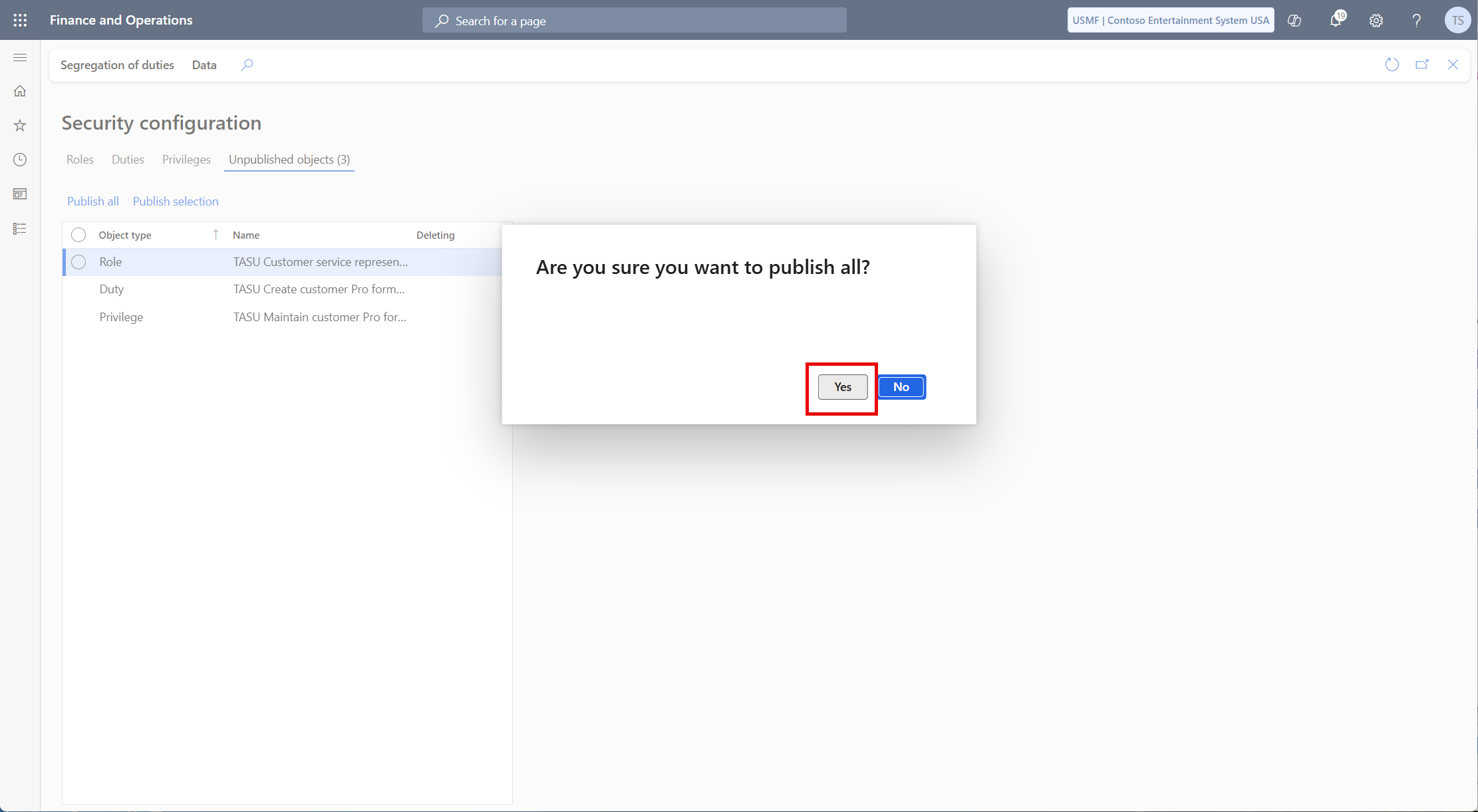
Assign the role one user at a time under System administration > Users > Users, select the user, then Assign roles. To assign several users at once, go to System administration > Security > Assign users to roles, select the role, select Manually assign / exclude users, select the users, and then select Assign to role.
Before you roll it out, have a test user with only this role check both sides: pro forma invoices work, and the Invoice button is denied. The walkthrough built the role but stopped short of this test, so treat it as your step, not an optional one.
Check the license impact before go-live
Licensing is driven by the roles assigned to users. Each role needs the lowest license that covers all the security objects it grants. Across a user's roles, the highest-priority license becomes the user's base license, and any other full product the user needs, for example Supply Chain Management next to Finance, becomes an attach license.
System administration > Security > Security governance > Licenses usage summary has five views: User Role Licenses, Role licenses, Duty licenses, Privilege licenses, and the preview Security object licenses view, which shows the license each entry point requires. The page banner says updates typically take 2 to 8 hours to appear, so a role you just created and assigned won't show up right away.
You don't have to wait to know the answer. Look up the license of the objects you added. In Role licenses, or in the Security object licenses view filtered on the role name, the standard Customer service representative role requires Operations - Activity.
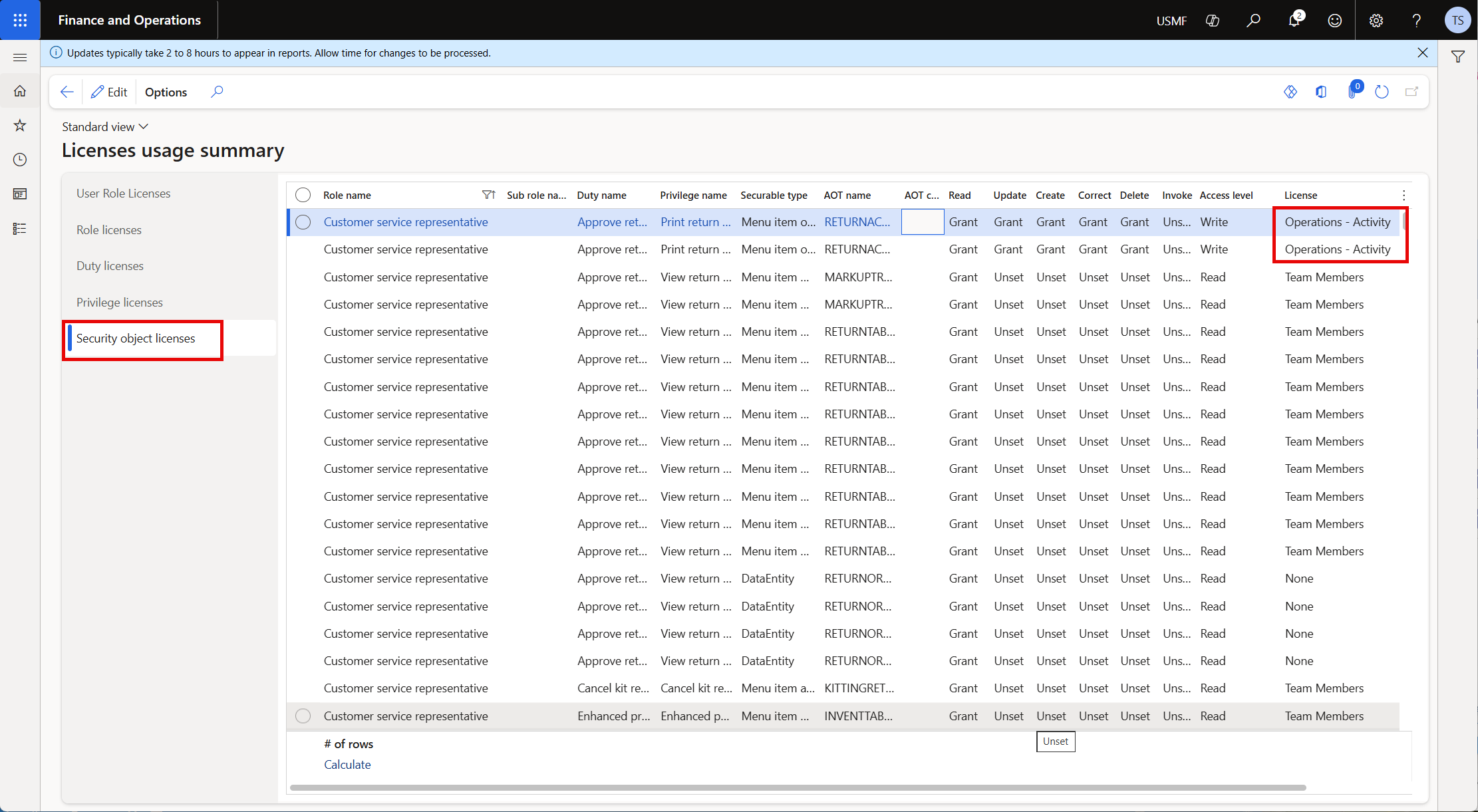
Now filter AOT name with contains PROFORMA. The pro forma invoice menu items SALESFORMLETTER_PROFORMA_INVOICE and SALESFORMLETTER_PROFORMA_INVOICE_ACTION require a Finance license.
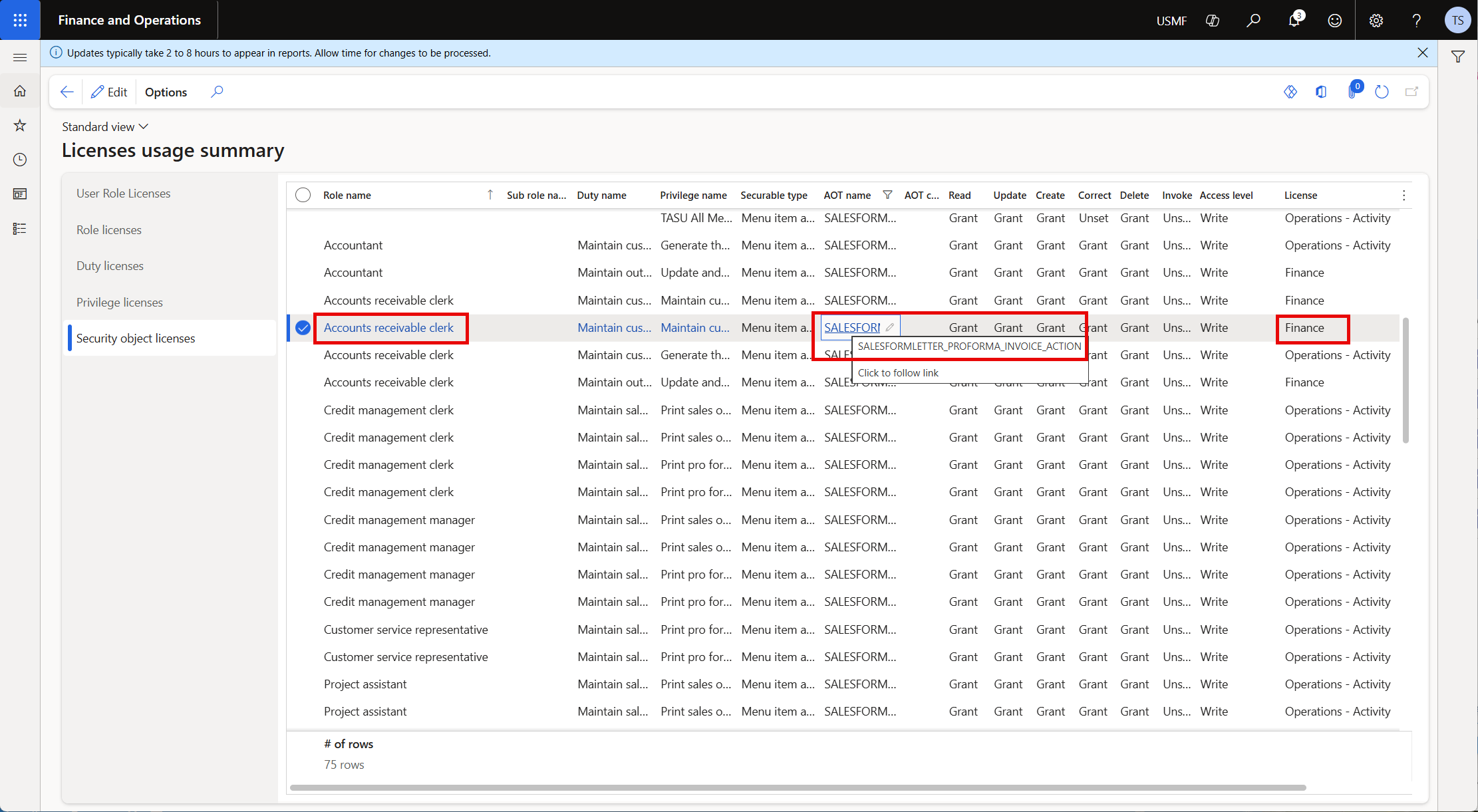
Two details in that screenshot are easy to miss. The purchasing pro forma items need Finance or Supply Chain Management, but the sales pro forma invoice items need Finance specifically, so a Supply Chain Management license alone doesn't cover them. And the pro forma confirmation and packing slip menu items need only Operations - Activity, which opens a cheaper option we come back to in the pitfalls below.
| Before | After | |
|---|---|---|
| Role | Customer service representative (standard) | Prefixed copy of Customer service representative (custom) |
| Pro forma invoice access | None | Granted |
| Invoice and posting access | None | Denied |
| Required license | Operations - Activity | Finance |
| US list price per user per month | about $50 | about $210 |
What the change costs depends on what each user is already licensed for. These are US list prices for annual commitments: Finance is $210 per user per month since October 2024, and Operations - Activity is $50. Your agreement may differ.
| The user already has | Extra cost per user (US list price) |
|---|---|
| A Finance license, needed for another role | None |
| Another full base license, such as Supply Chain Management | A Finance attach license, $30 per user per month at list price, instead of the full $210. Check your price list. |
| Only Operations - Activity | $160 more per month ($210 minus $50), which is $1,920 per year. For a team of 10 representatives, that is $19,200 a year. |
With an annual commitment, Operations - Activity seats usually can be reduced only at renewal. Until then, each upgraded user can cost the full $210 a month on top of the Activity seat already paid for.
The license follows the menu item, not the outcome. The role can't create a real invoice, but the pro forma menu item it can reach is a Finance-licensed object, so give the business this cost before the change goes live, not after.
Roll back if something goes wrong
The version you saved at the start is your way back, but save the current state first. Create another version, for example "2026-10-19 pro forma," so you can return to the new configuration if the rollback itself turns out to be the mistake. Wait until its status is Ended.
Then select the earlier version and select Restore version. The dialog lets you choose what to restore: Security configuration, User security governance data, and, with Security configuration on, Remove customizations. Read the warning and confirm.
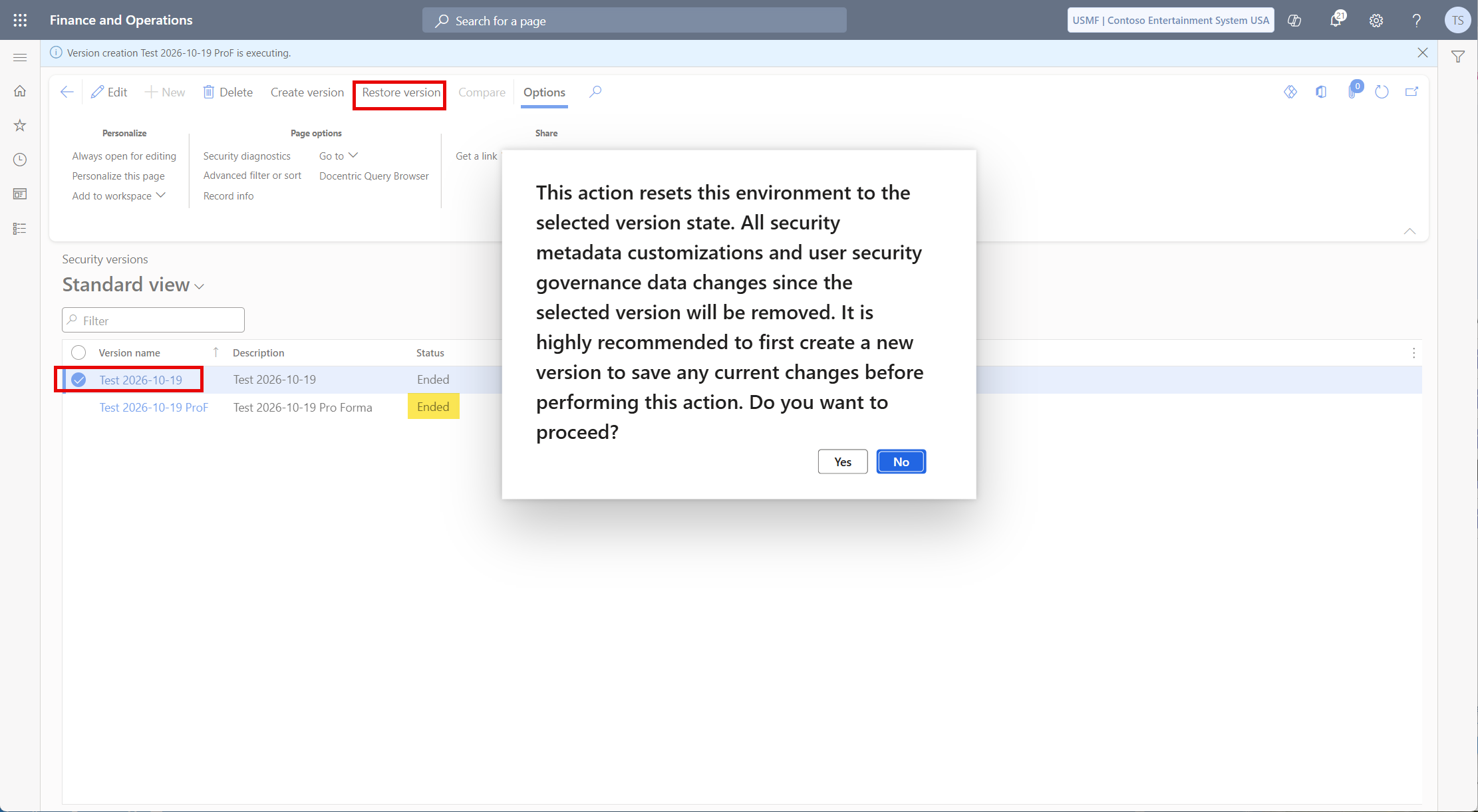
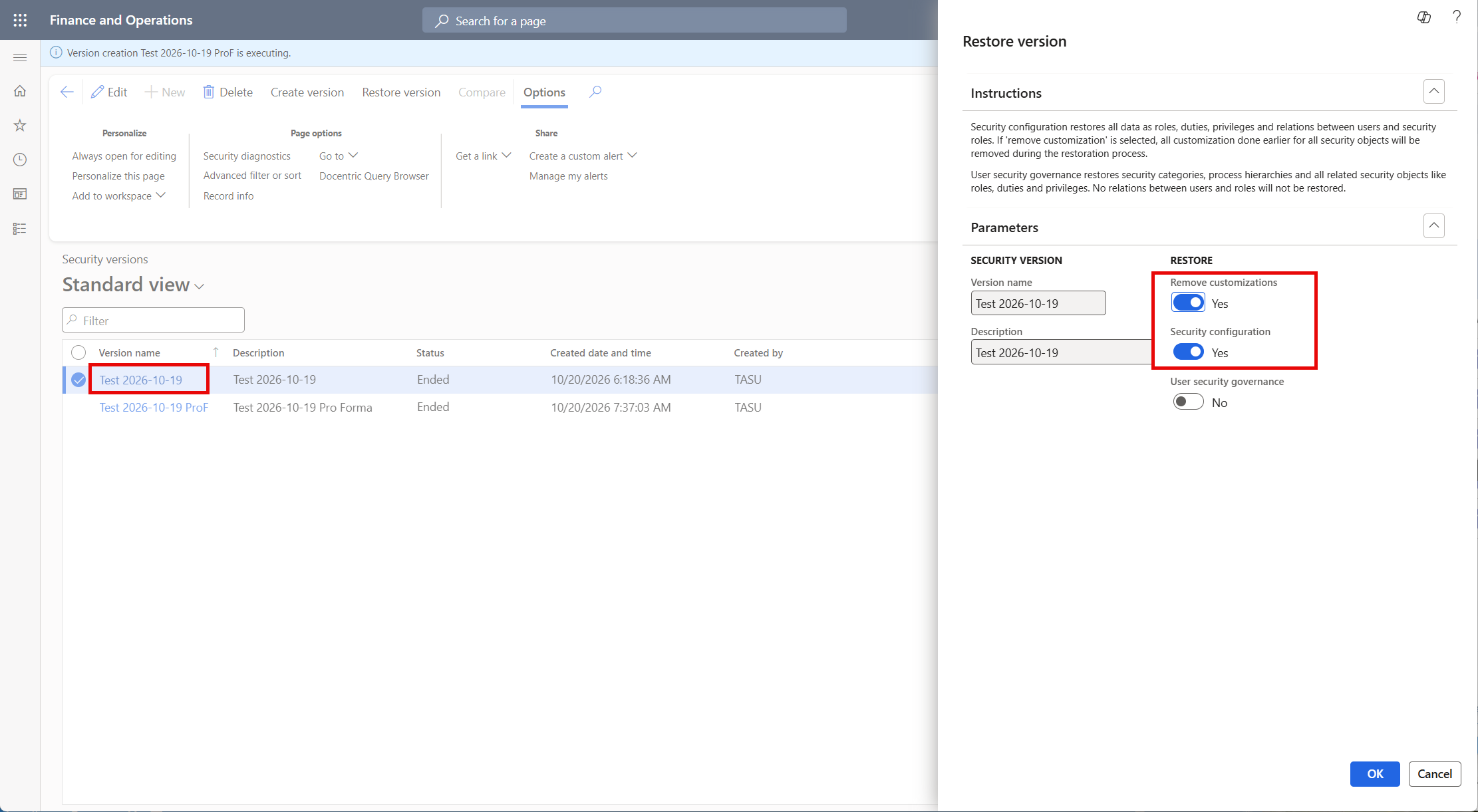
The restore removes the custom privilege, duty, and role created since the version, and the users' assignments to that role along with them.
Recommendations and common pitfalls
Six habits made this walkthrough safe to run on a Tuesday afternoon. Always start with Rebuild and Create version, because the analysis is a snapshot and the version is your undo. Copy, don't edit: duplicate standard roles, duties, and privileges, and give your copies a clear prefix. Record the task, since Task recorder plus Load from Task Recording gives you the exact menu items, and record both the action you want to allow and the one you want to block so you can compare them. Choose Deny or Unset deliberately, with the business owner in the room. Price the change before go-live by looking up the license of every added entry point in Security object licenses. And test with a user who has only the new role, checking that the allowed action works and the blocked one is denied.
The mistakes we see most often are the mirror image of that list. Adding the standard privilege as is, which gives the representatives full invoicing rights because Maintain customer invoices grants pro forma and invoicing together. Expecting the duplicate to appear in the reports right away, when objects created after the last Rebuild don't show up in Security object references and new assignments take hours to reach the license summary. Forgetting to publish. And restoring an old version without saving a new one first, which throws away every change made since.
Deny blocks access; it doesn't lower the license. If another role the user holds grants the same object, that grant can still count toward the user's license even though the effective access is denied. Confirm the real number in Licenses usage summary once it has refreshed, not from the custom privilege alone. And before you redesign anything, check whether a cheaper document is enough: the pro forma confirmation and packing slip menu items need only Operations - Activity, while the pro forma invoice needs Finance. Whether a confirmation meets the customer's needs is a business decision, so ask it first.
The checklist
- Rebuild Security analysis.
- Create a security version and wait for Ended.
- Duplicate the standard role with your prefix.
- Record the task with Task recorder, both the allowed action and the blocked one, and save to this PC.
- Load from Task Recording in Security process roles maintain and note the menu items.
- Use Security object references to find the privilege, and then the duty, that grant them.
- Duplicate the privilege. Set Deny (or Unset) on the blocked items and keep Grant on the allowed items.
- Duplicate the duty. Add the new privilege and remove the standard one.
- Add the duty to the new role, publish all, assign the role to a test user, and test both actions.
- Check Security object licenses and Licenses usage summary, and share the cost with the business. Keep the "before" version until the change is accepted.
| Task | Path |
|---|---|
| Rebuild the security snapshot | System administration > Security > Security governance > Security analysis > Rebuild |
| Save or restore a snapshot | System administration > Security > Security governance > Security versions |
| Roles, duties, privileges, publishing | System administration > Security > Security configuration |
| Record a task | Settings (gear) > Task recorder |
| Sales orders | Accounts receivable > Orders > All sales orders |
| Pro forma invoice | All sales orders > Invoice tab > Generate > Pro forma invoice |
| Parse a task recording | System administration > Security > Security governance > Security process roles maintain |
| License requirements | System administration > Security > Security governance > Licenses usage summary |
| Assign a role to one user | System administration > Users > Users > Assign roles |
| Assign a role to many users | System administration > Security > Assign users to roles |
A role that can only draft an invoice costs the same Finance license as one that can post it. Build the custom privilege, duty, and role exactly as above when the business needs the draft, but put the $160 per user per month on the table before anyone clicks Publish.
Related reading: how a license requirement rolls up from a single entry point and how one extra privilege triggers an attached license are the mechanics behind the Finance jump above, a cost optimization can revoke access covers the Deny-beats-Grant rule from the other direction, and finding your most expensive roles applies the same entry-point tracing to a whole tenant. If the object names in this guide are new to you, start with how Dynamics 365 actually bills you and the glossary, and see Microsoft's mandatory per-user license validation for why an under-licensed role now locks the user out rather than just showing up on a report.