
When a role requires two licenses, working out why is usually a five-minute job: whatever's entitled under one SKU and not the other tells you the split. Three licenses on one role, and that shortcut stops working. The entry points overlap, nothing points cleanly at a single cause, and guessing gets expensive fast if you guess wrong.
This is Part 3 of a three-part series. Part 1 covered identifying inactive users, and Part 2 covered two security-configuration mistakes that bump license tiers without changing anyone's actual access. Part 3 covers strategy #3: a spreadsheet method for finding exactly which duties and privileges are driving each license on a role that requires more than one, plus two ways to fix what you find.
Two licenses is easy. Three isn't.
Microsoft's own guidance is to keep one license per role. In practice, roles built up over time pick up duties and privileges that pull in more than one SKU. The License Usage Summary Report, under System administration → Security → Security governance → Licenses usage summary, shows you which roles that's happening to and how many licenses each one requires.
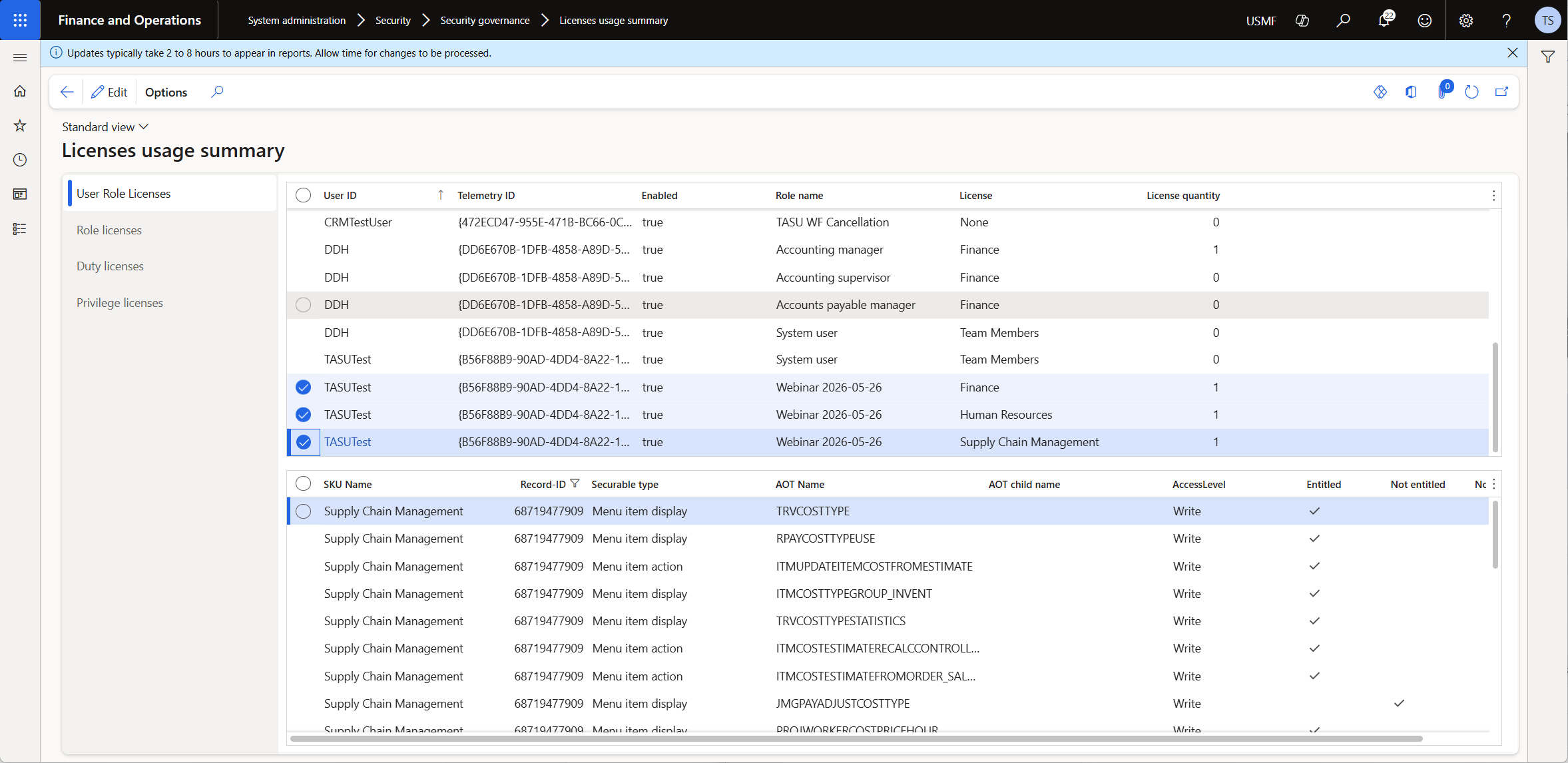
Switch to the Role Licenses tab and filter to that role, and you get entitled and not-entitled counts per SKU. For the role above: Finance has 19 entry points entitled and 8 not, Human Resources has 7 entitled and 20 not, Supply Chain Management has 24 entitled and 3 not.
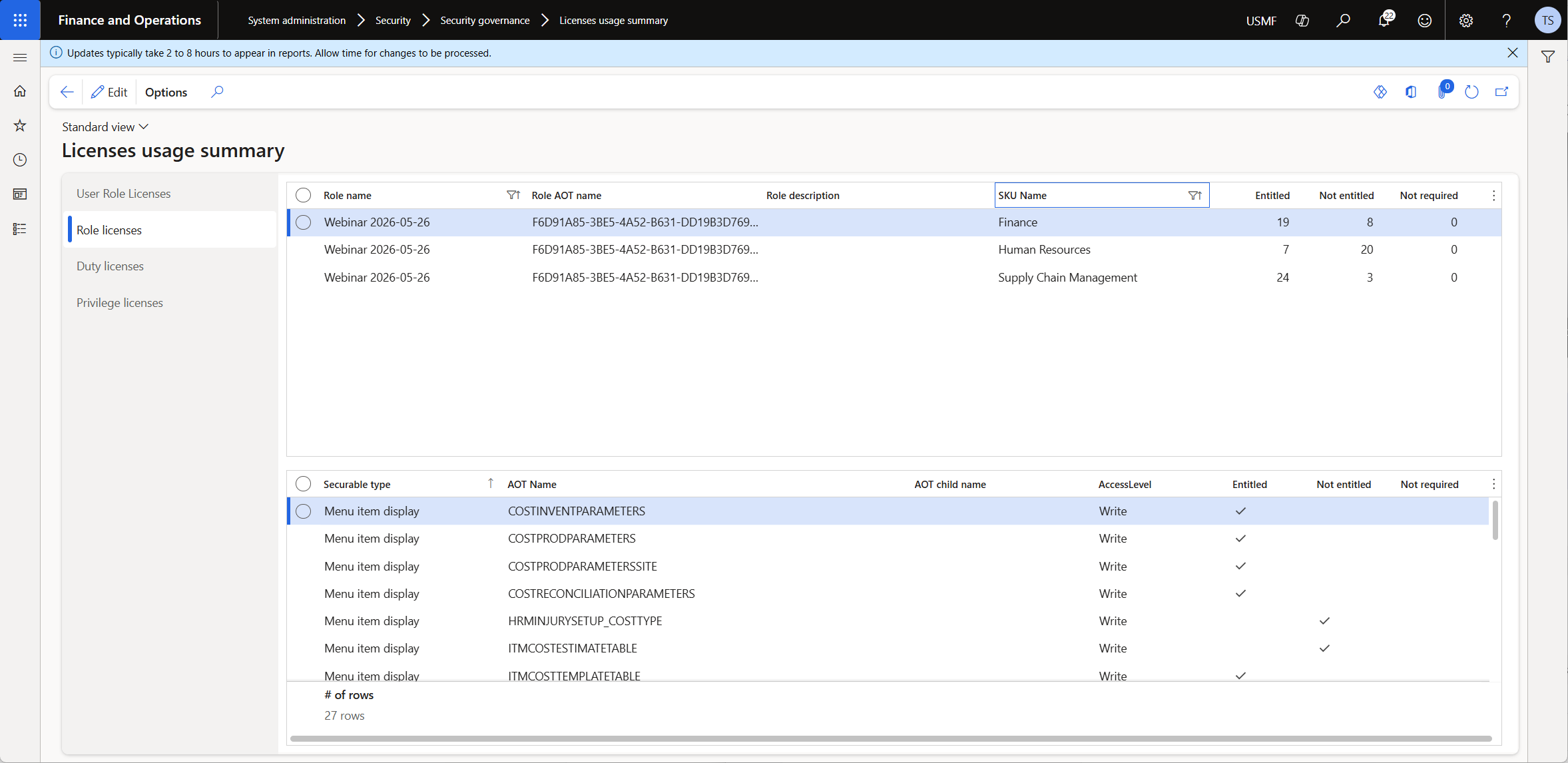
If this role only required two of these three licenses, you could reason it out: whatever's not entitled under one SKU probably belongs to the other. With three licenses in play, that logic breaks. An entry point not entitled under Finance could belong to either Human Resources or Supply Chain Management, and there's no way to tell which from these two screens alone.
Pulling the four exports
Finding the actual driver takes four exports. Three are the entitled entry points for each license SKU: open the Role Licenses tab, select one SKU, filter the bottom grid to Entitled is exactly Yes, and export. Repeat for each of the other two SKUs. The fourth export is different: it's the full role configuration from the Security analysis report (System administration → Security → Security governance → Security analysis), not filtered to one license, exported as-is.
That gives you four spreadsheets: one full configuration, and three lists of exactly which entry points each license entitles.
Merging them with two formulas
The full configuration export doesn't have an access level column by default, and none of the four exports share a common key to merge on. Two formulas fix both problems.
The first is an access level formula, added to the Security analysis sheet: if Update, Create, Delete, Correct, or Invoke is granted, the access level is Write. If only Read is granted, it's Read. The second is a key: resource type, plus the entry point name, plus the access level just computed, joined into one string. Add the same key formula to each of the three entitlement exports, using their own resource type and access level columns.
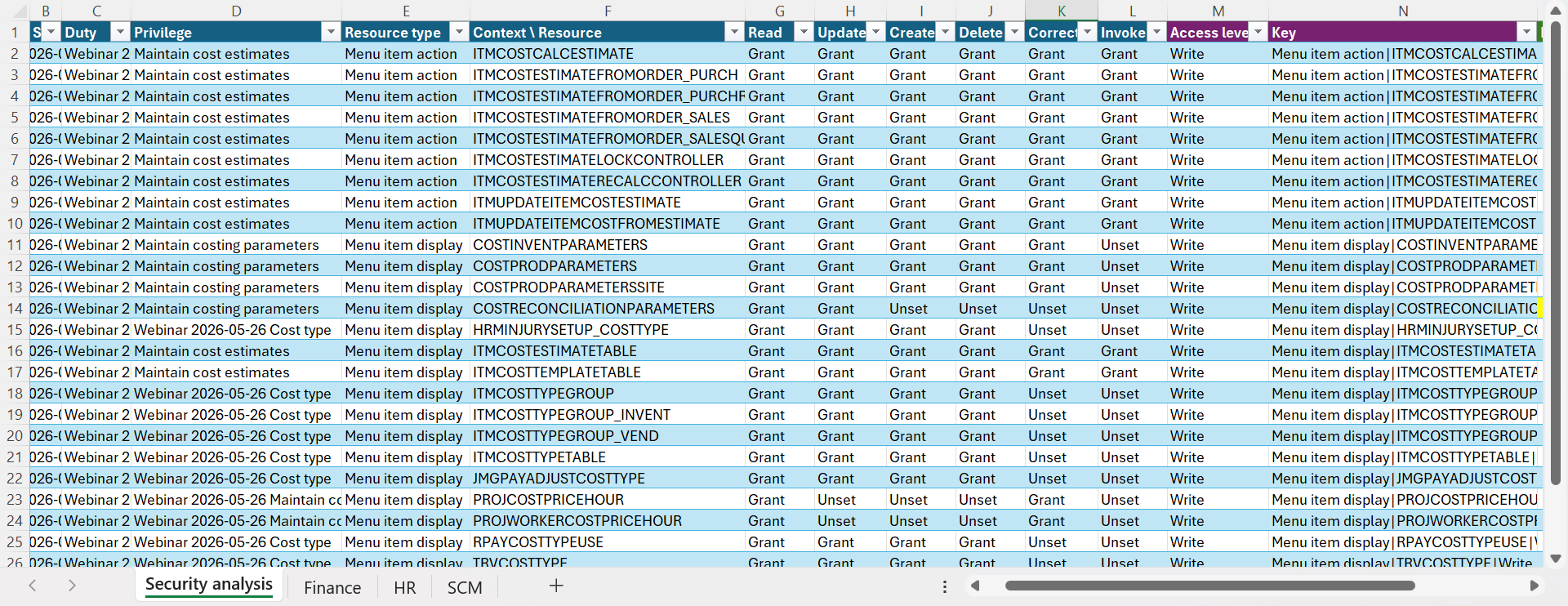
With a matching key on all four sheets, a VLOOKUP against each entitlement sheet's key column tells you, for every row in the full configuration, whether that exact entry point and access level is entitled under Finance, under HR, under SCM, or under more than one. A fourth column flags whether exactly one of those three came back true.
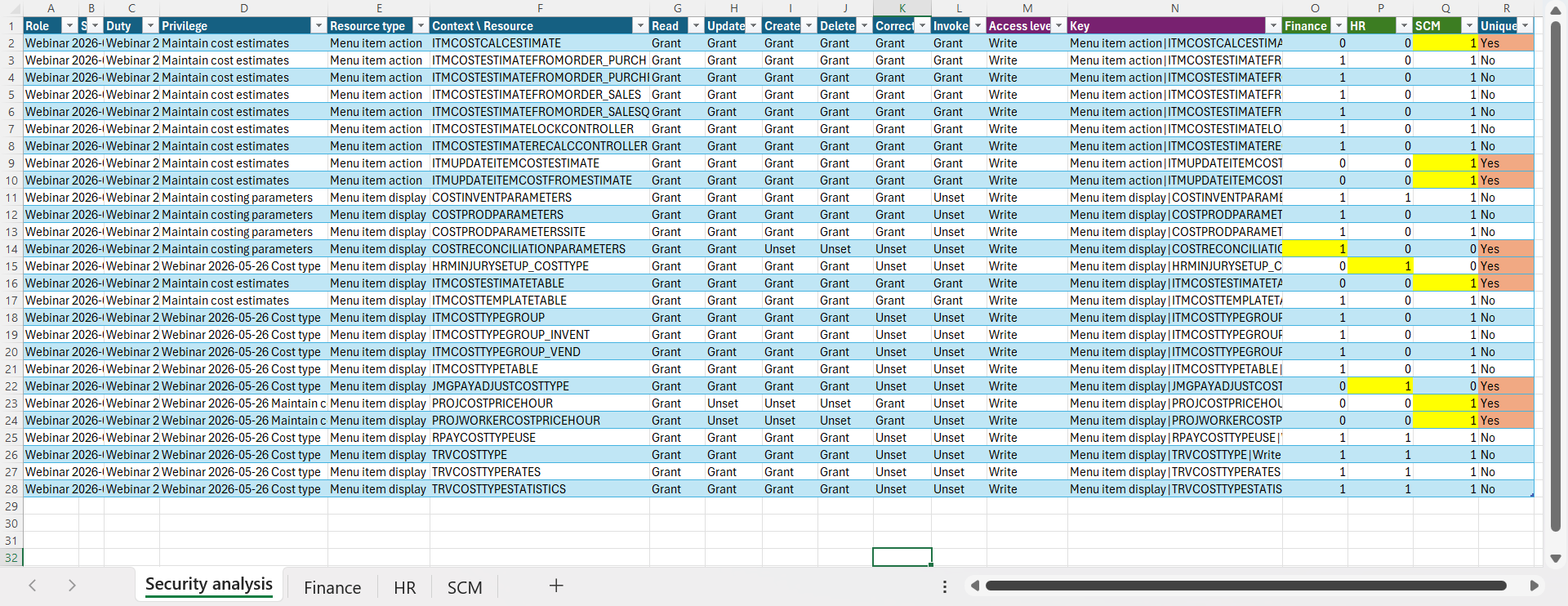
A row marked Unique is entitled under exactly one of the three licenses, which means it's a real, standalone driver of that license requirement. It has to go somewhere, and that somewhere is the one SKU it's entitled under. A row entitled under two or three licenses at once isn't a fixed cost the same way: the licensing engine can often satisfy it through whichever SKU turns out to be the common one across several entry points, so it's not automatically driving anything on its own.
We built the exact workbook used above, with both formulas already in place across all four sheets. Swap the demo data on each tab for your own tenant's exports and the Access level, Key, Finance, HR, SCM, and Unique columns recalculate on their own. It's set up for a three-license role; add a column and a VLOOKUP for a fourth SKU if you need one.
When an entry point is entitled under more than one license
Not-unique rows still need a home, and Microsoft resolves that with a fixed priority order. From highest to lowest: Supply Chain Management Premium, Finance Premium, Supply Chain Management, Finance, Commerce, Project Operations, Human Resources, Operations - Activity, Team Members, Human Resources Self Service. When an entry point is entitled under more than one SKU, the highest-priority one on this list is the one that actually gets assigned. It's worth checking this table against the Licensing Guide directly before relying on it. Microsoft has changed relative priority between SKUs across editions.
Two ways to fix a unique-driver row
Once you have a list of rows that are genuinely, uniquely driving an unwanted license, there are two ways to deal with each one.
Downgrade the access level. If Update, Create, Delete, Correct, or Invoke is granted and the user doesn't actually need to act on that entry point, revoke those permissions and leave Read in place. That drops the access level from Write to Read, which typically only requires the cheap Team Members tier instead of a full license.
Revoke access entirely. If the user has no business reason to touch the entry point at all, remove it from the privilege, or remove the whole privilege if nothing else in it is needed. This isn't a call to make from the spreadsheet alone. It's a decision to make against telemetry and an actual conversation with the business unit that owns the role, the same sources Part 1 and our telemetry guide cover for confirming whether access is genuinely unused before anyone's license gets touched.
Can "Duplicate Role" help?
D365 F&SC has a built-in tool for this: duplicate a role, and you can scope the copy to a single licensing SKU. Everything that isn't required by that SKU gets dropped from the copy, leaving a clean, single-license role.
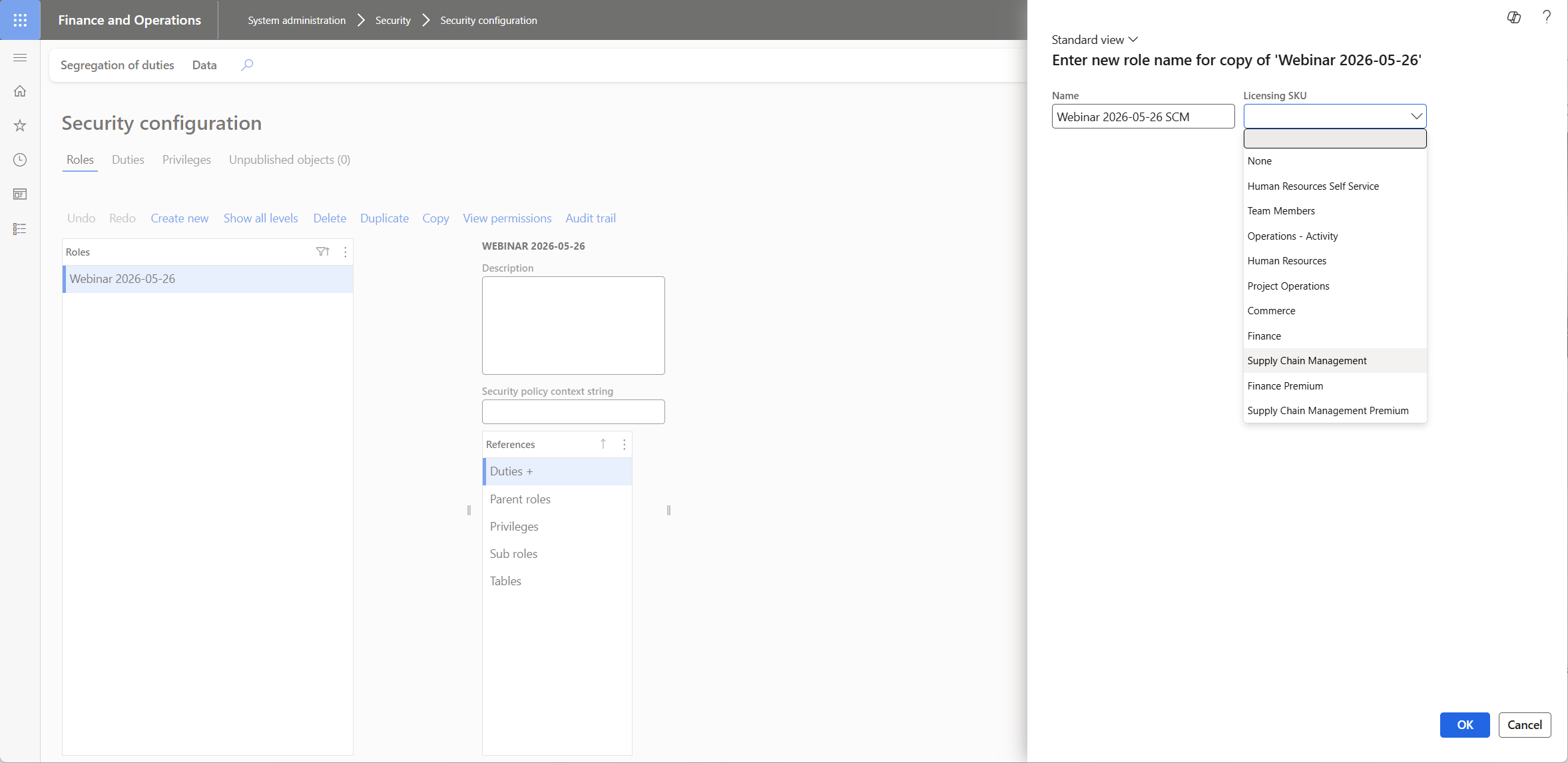
It's a genuinely useful cleanup tool once you already know what you're doing, and it fits Microsoft's one-role-one-license guidance well. What it doesn't do is tell you why the original role needed three licenses in the first place. It builds a clean role after the fact; it doesn't explain which duties and privileges were mixing the licenses together, which is exactly what the spreadsheet method above is for.
A role requiring three or more licenses can't be diagnosed by eye. The four-export, two-formula method above turns it into a short list of entry points that are genuinely, uniquely responsible for each extra license, which is the only list worth acting on. Duplicate Role is a good next step once you have that list. It's not a substitute for building it.
That's the third and last strategy in this series. Together with identifying inactive users and the two security-configuration mistakes in Part 2, this covers the three places we consistently find license spend that doesn't match actual access. Pair all three with the tier-mapping patterns in D365 F&SC Licensing 101 and the role structure covered in finding SoD conflicts before your auditor does for the full picture.