
Part 1 of this series was about finding users who genuinely don't need a license anymore. Strategy #2 is a different kind of problem: users who need exactly the access they have, correctly configured from a security standpoint, whose security role is still quietly requiring a more expensive license tier than their actual access justifies. Both mistakes below pass a normal access review clean. Neither shows up unless you specifically go looking for it in the security analysis report.
This is Part 2 of a three-part series. Part 1 covered identifying inactive users. Part 2 covers strategy #2: two ways a security administrator can grant more license-relevant permission than a role's actual access requires, both invisible unless you know to check for them.
Mistake 1: Contradictory Deny and Grant on the same entry point
A user can hold multiple security roles, and those roles can end up granting conflicting permissions on the exact same entry point through two different privileges. Say one privilege grants Update, Create, and Delete on a menu item, and another privilege the same role picks up denies those same three permissions on that same menu item. From a security standpoint this isn't a bug: Deny always suppresses Grant, no matter what else the user has access to, so the user correctly ends up with no access to that menu item. It works exactly as intended, and it looks completely fine in a security review.
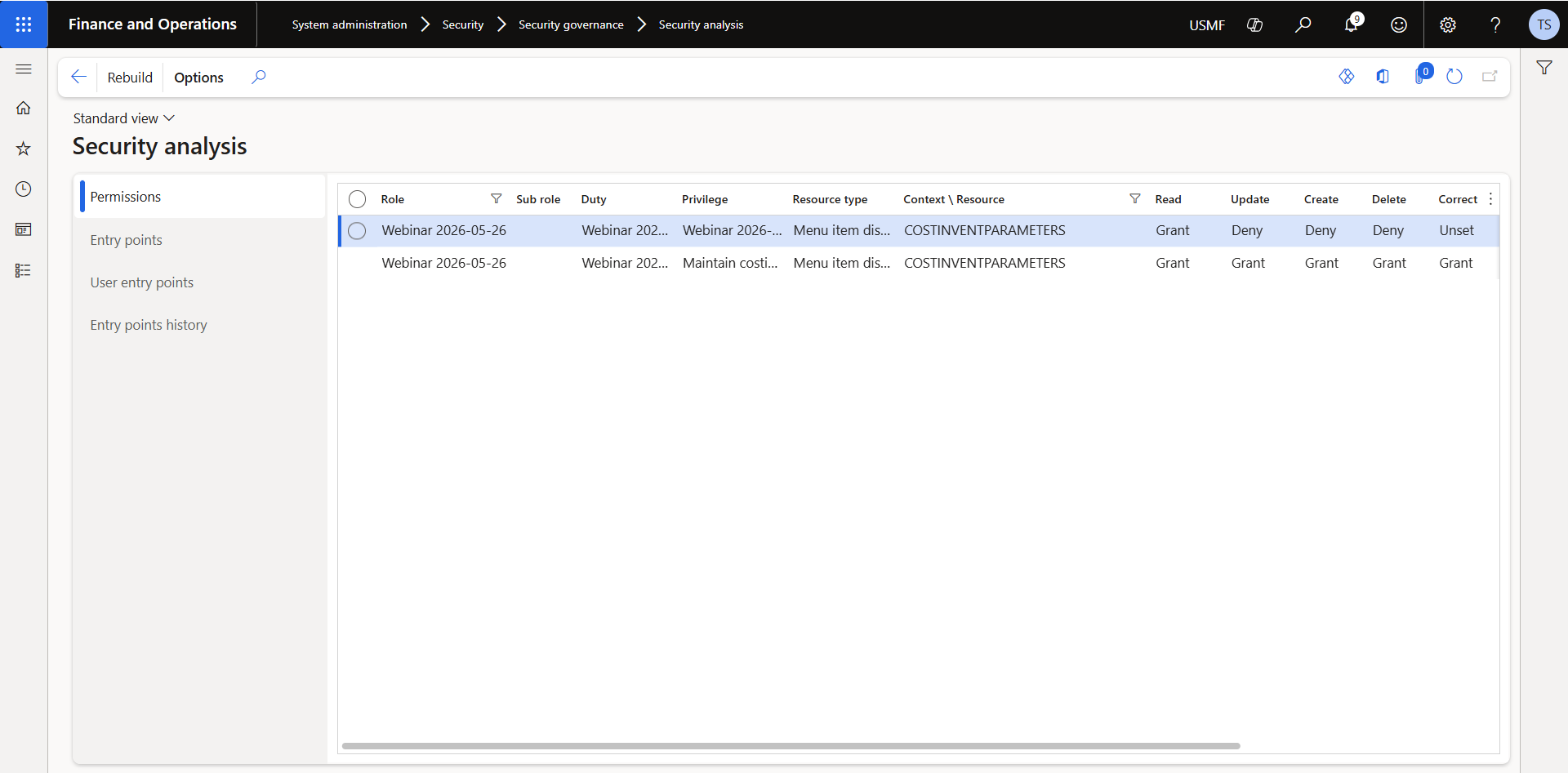
License tier isn't calculated from what the user can actually do after Deny wins. It's calculated from the highest permission granted anywhere in the role, even on a permission that Deny is actively suppressing. A menu item with a Grant sitting in one privilege and a Deny sitting in another still counts as a Grant for licensing purposes, so the user gets billed for access they can't use.
The read permission alone doesn't cause this problem: a read-only conflict still only requires the cheap Team Member tier. It's specifically Update, Create, Delete, or Correct sitting as a Grant somewhere in the role, contradicted by a Deny somewhere else, that quietly pushes the license requirement up to a full tier for access the user will never actually get.
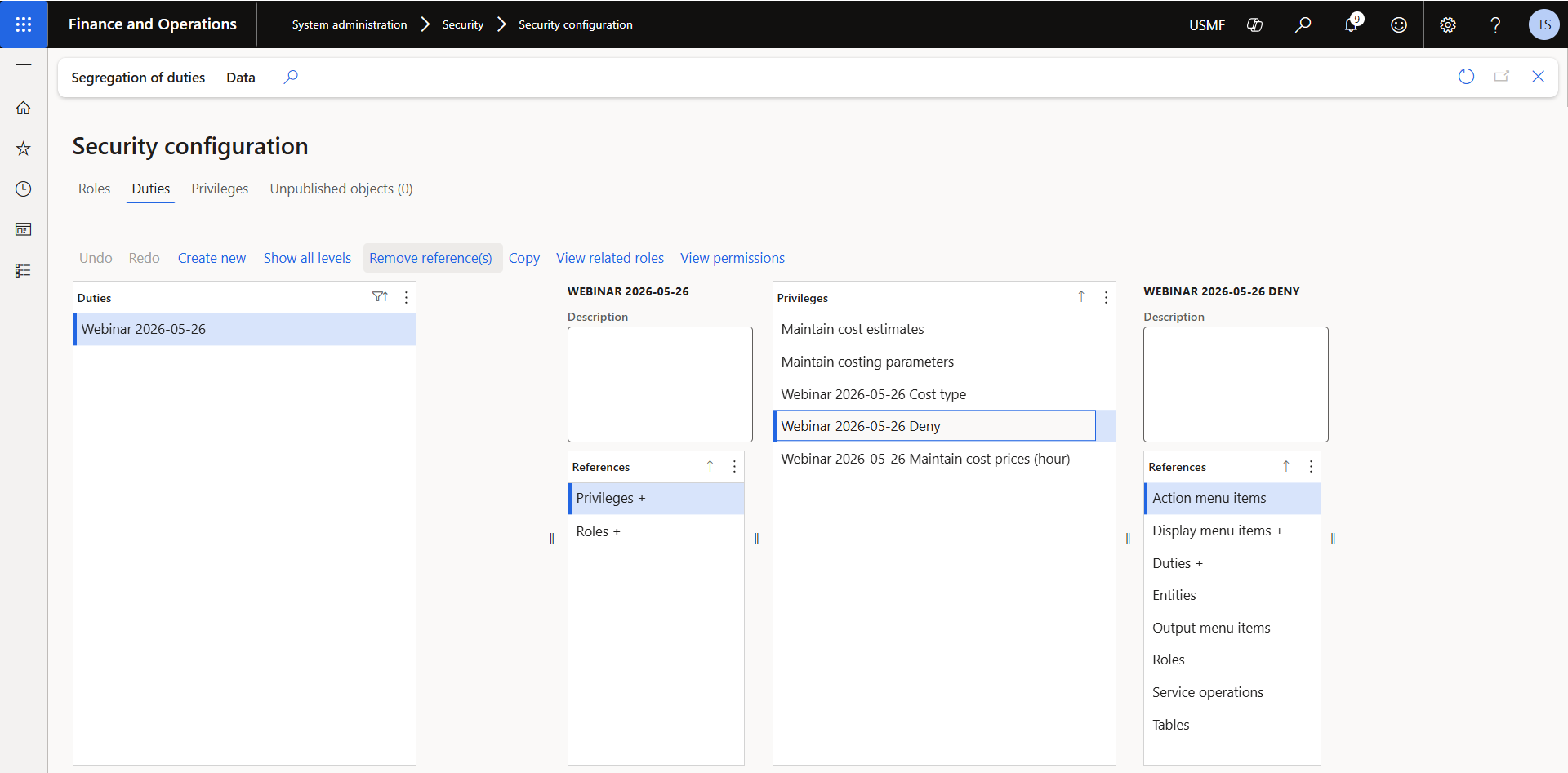
To find it, run the security analysis report, filter by menu item, and look for entry points where one privilege shows Grant and another shows Deny on the same permission column. Fixing it means going into the security configuration, drilling into the conflicting privilege, and removing the reference that's granting access you don't actually want the role to have.
Mistake 2: Correct or Invoke granted without the permissions under them
D365 F&SC's permission levels form a chain: Read, then Update, then Create, then Delete, then Correct and Invoke sit above all of them. To actually get functional access at any level, every level below it has to be granted too. A privilege with Update granted but Read unset doesn't do anything, because there's nothing beneath it to make Update usable.
The mistake happens during privilege duplication. An administrator copies an existing privilege to build a more restricted one, unsets Update, Create, and Delete on the copy, and stops there, because from an access standpoint that's the whole job: the user now only has read access, exactly as intended. But if the original privilege had Correct or Invoke granted, and the administrator doesn't specifically go unset those too, they're still sitting there granted, on top of a chain that no longer supports them.
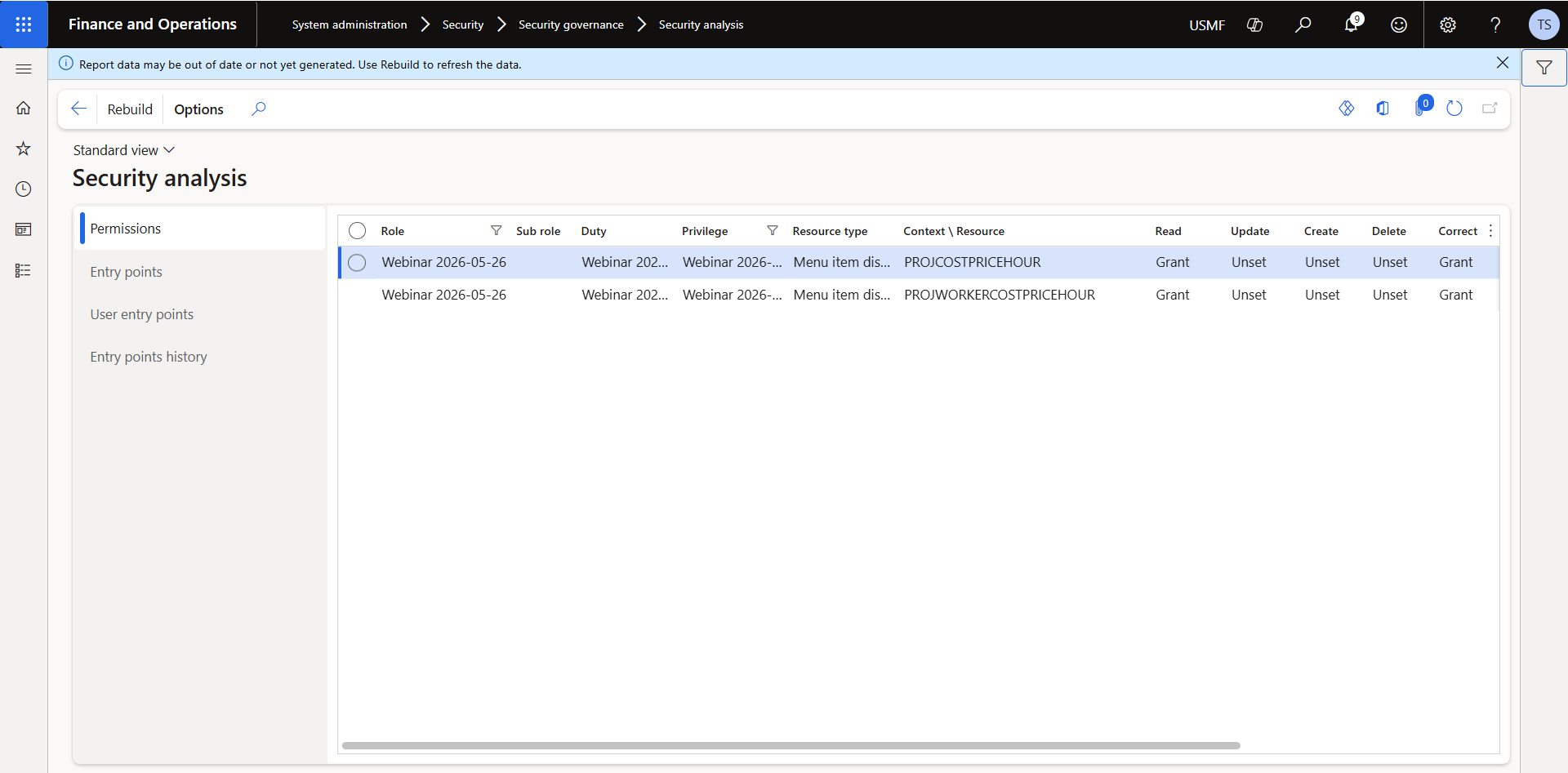
Functionally, this permission does nothing: Correct with no Update, Create, or Delete beneath it can't act on anything. Licensing doesn't care that it's inert. A granted Correct or Invoke still counts toward the highest permission level the role requires, so the user's license tier goes up for a permission that provides zero actual capability. We see this in almost every configuration we analyze. It's one of the easiest fixes available, because removing it changes nothing about what the user can do.
Data entities behave differently from regular menu items. A data entity can have Read unset and a higher permission granted and still function correctly, so this specific mistake doesn't apply to that resource type the same way. Everything above is about menu items and other standard resource types, where the permission chain has to be built up in order.
The fix is the same shape as Mistake 1: open the security configuration, go to Privileges, drill into the specific menu item, and unset any permission level that doesn't have its prerequisites granted underneath it.
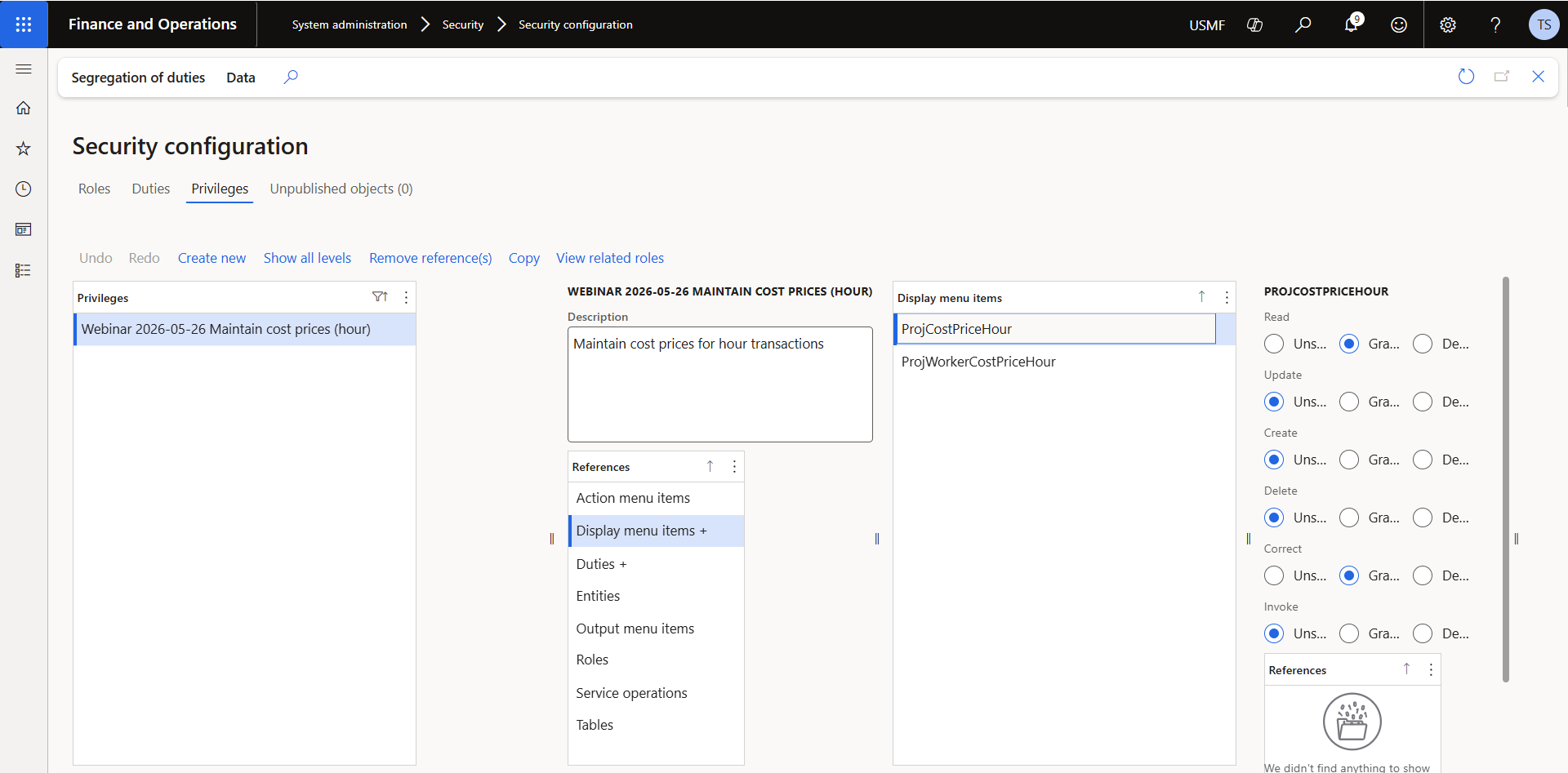
Both mistakes share the same shape: the access control is correct, so a security review passes it, and the license cost is wrong anyway. Neither shows up without a permission-level cross-check in the security analysis report, filtered to Update, Create, Delete, Correct, and Invoke. That's a small, specific thing to check, and it's worth doing before assuming your license spend reflects your actual security model.
Part 3 of this series covers the next strategy: what to do when a role requires three or more licenses and it isn't obvious which permissions are driving each one. In the meantime, this pairs directly with the role and duty structure covered in finding SoD conflicts before your auditor does, and with the tier-mapping patterns in D365 F&SC Licensing 101 once your permission configuration is clean.