
Most D365 Finance & Supply Chain licensing problems don't start with the license count. They start with security that no longer matches the original design. In the first two articles in this series, we covered how a single privilege's requirement gets set and how that requirement compounds up to a real user. This one covers the part that's hardest to catch: security objects everyone assumes are still standard Microsoft, that quietly aren't.
In most environments, clients believe Microsoft-delivered roles, duties, and privileges are untouched, safe to trust, and effectively a gold standard. Often they're wrong, and the moment a licensing review shows why, the assumption behind the whole security model starts to crack. The harder problem isn't accepting that something changed. It's that almost nobody can point to the one change that caused the increase. The roll-up logic connecting entry points to duties to roles is hard enough to trace by hand even when nothing has been customized.
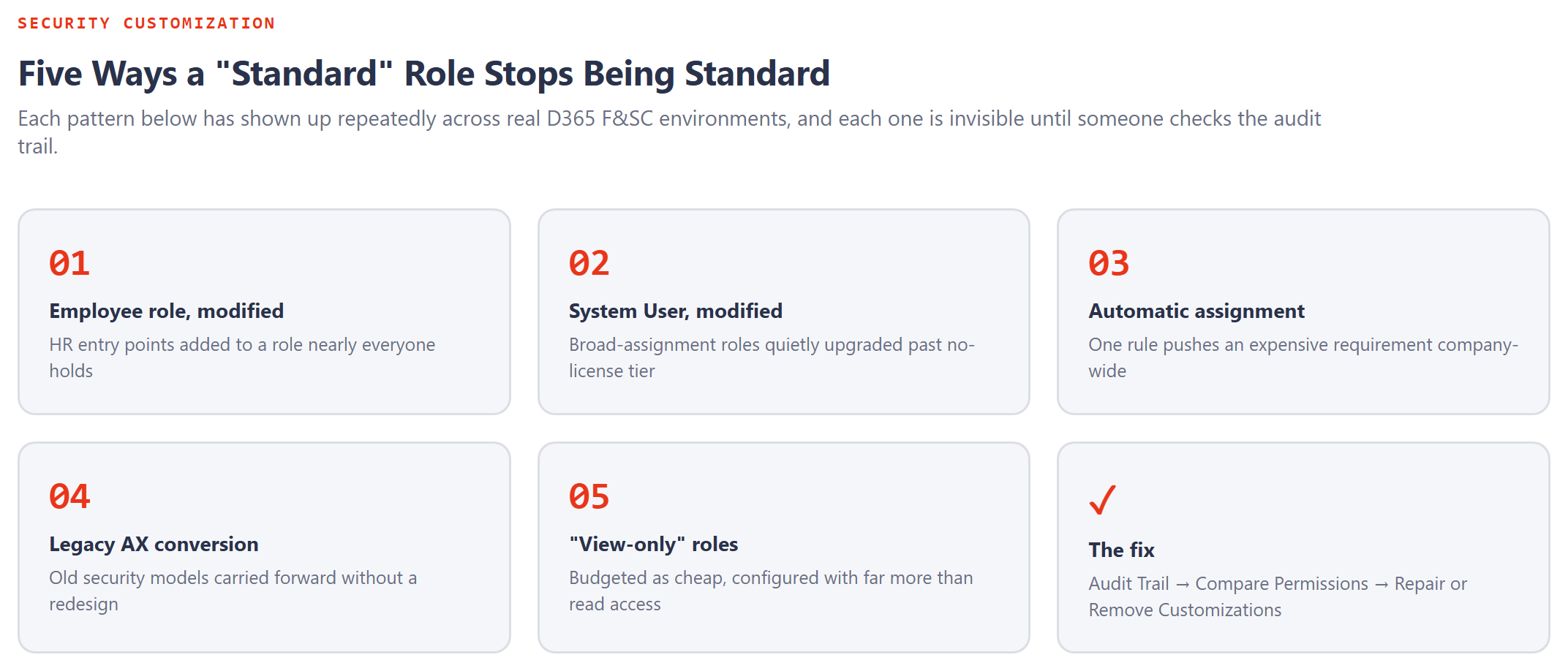
1. Human Resources entry points added to a basic role like Employee
The Employee role is typically assigned to nearly everyone in the company, for exactly the reasons you'd expect: personal information maintenance, expense reports, purchase requisitions. When someone adds Human Resources entry points to that role, "just in case," a Human Resources license becomes required for every person holding it, often hundreds of people at once. The client sees the requirement, suspects it traces back to Employee or another Microsoft role, and has no way to explain why a role that broad essential requires a full license.
2. System User or External System User, modified
These two roles carry essential access for nearly the entire user base by design. When entry points are added to either one, the role can start requiring Operations-Activity or a full license, and because the role is assigned so broadly, the licensing impact scales across nearly everyone in the tenant almost instantly.
3. Automatic role assignment hiding the real cause
Automatic role assignment (via an Entra ID group, a D365 user group, or a Team) is a legitimate, useful governance feature when it's built correctly. It's also a genuine blind spot: one seemingly innocent rule, assumed to behave like a Team Members-level assignment, can quietly push a Supply Chain Management requirement onto the entire company. The automation is doing exactly what it was configured to do. The configuration itself is the problem, and it's easy to miss because nobody is looking at automatic assignment rules as a licensing risk.
4. Legacy AX conversions carrying old design forward
Security converted from AX 4.0, AX 2009, or earlier environments was built under a completely different security model. Converted without a real redesign, it typically carries forward too much access, too much inherited complexity, and licensing overhead that has nothing to do with how the business actually uses the current system. This isn't just technical debt. It's licensing debt that compounds every renewal cycle it goes unaddressed.
5. "View-only" roles that aren't actually view-only
This is the most expensive pattern on the list precisely because it looks the safest. Organizations budget a view-only role at Team Members pricing, a few dollars a user a month, and assign it broadly, confident it's low-risk. Behind the scenes, the role sometimes carries far more than read permission, and drives a full Finance, Supply Chain Management, or Human Resources requirement instead. What was budgeted as a near-free, company-wide assignment becomes a multiplier for one of the most expensive license tiers available.
None of these five patterns are exotic. They're the ordinary result of years of small, individually reasonable changes, each one made without anyone checking what it would do to the license bill.
How to actually prove what changed
Every securable object in D365 F&SC carries a real audit trail, and most clients forget it exists. From System Administration, open Security Configuration, select any role, duty, or privilege, and use the Audit Trail button. If the update was made by the user ID "-System-," it came from a version upgrade and can be trusted. If a named user made the change, someone modified it manually, and that's the moment worth investigating.
Inside the audit trail, Compare Permissions lets you diff the system-updated version against the user-updated version directly, showing exactly which permissions changed. From there, the Data section on the Security Configuration screen offers Repair and Remove Customizations, both of which strip customizations back toward the Microsoft-delivered baseline.
The best long-term practice is simple: never modify Microsoft-delivered roles, duties, or privileges directly. Duplicate first, then customize the duplicate. Keep the original as your permanent, trustworthy reference point.
That habit pays off beyond licensing, too. When Microsoft or an ISV adds new functionality in a later release, new securable objects can land on the standard roles automatically, but a duplicate built years earlier won't inherit them. Comparing your custom security against the current out-of-box version is how those silent gaps get found before they become either an access problem or a licensing one.
Start with the license expectation for a role, based on the business process it's meant to support, then compare that expectation against what the role actually triggers. When the two disagree, the audit trail tells you which duties, privileges, or entry points are responsible, and whether they should be removed, redesigned, or downgraded to view-only. That's the difference between reading a licensing report and using it to fix the security design underneath it.