
Our companion article walks through the manual way to collect license-analysis data: eighteen-plus datasets, each opened through its own View/UI form, DMF export project, or Table Browser page, exported one at a time. In a healthy, non-overloaded environment that takes about an hour and a half. On a tenant with a table or two past a million rows, it can run to a couple of hours, sorting ascending, sorting descending, and manually removing duplicates to work around the platform's row-count ceiling on a single export.
There's a faster path for everything that lives in the F&O SQL database itself: request just-in-time access to a sandbox, then run one script.
Step one: get just-in-time access to a Tier 2 sandbox
Just-in-time (JIT) database access is a Microsoft-native feature of Lifecycle Services, not a workaround. It exists specifically for troubleshooting, ad hoc queries, and data problem-solving, which is exactly what a license analysis is. It only works on a Tier 2+ sandbox, never on production, so the first step in any engagement is confirming the client has a sandbox that's been refreshed recently enough to reflect current security and license configuration.
From the environment's details page in LCS, select Maintain → Enable access, add the requesting machine's outbound IP address, and choose read or read-write access under Database Accounts. The access grant expires after eight hours, or sooner if the database is refreshed or moved in the meantime. Once it's active, LCS shows the server and database names, and you connect the same way you would to any Azure SQL database.
(Invoke-RestMethod -Uri "https://api.ipify.org?format=json").ip in PowerShell, compared against what's shown in LCS's firewall rule. A mismatch, common if you requested access from one network and are now running the script from another, doesn't throw a helpful error. The connection just quietly refuses.
This is documented directly by Microsoft, not an internal workaround; see Enable just-in-time database access on Microsoft Learn for the full steps.
Step two: run one script instead of roughly twenty exports
Once the JIT grant is active, our internal extraction script connects with the same four values LCS just handed you, SQL Server, Database Name, User name, Password, and pulls every SQL-reachable dataset in one run. It's built to be zero-install: PowerShell 5.1, already on every Windows machine, and .NET's built-in System.Data.SqlClient, no ODBC driver, no separate database tool. A hand-written CSV writer applies the same RFC-4180 quoting the original UI exports use, so a Description field with a comma or an embedded line break doesn't corrupt the file the way a naive export sometimes does.
After connecting, it lists all 33 datasets and lets you run everything or just the ones that changed:
PS C:\projects\license-data-extraction> .\extract-license-data.ps1
SQL Server: avantiico-jit-sbx-nam-d365opsprod-4b7e91fa2c3d.database.windows.net
Database Name: db_d365opsprod_democlient_ax_20260809_44219087_c812
User name: JIT-demo-h3n8q1
Password: [redacted, an 80+ character JIT-issued secret, valid for this session only]
(captured lengths -- server:58 db:47 user:15 password:88)

Available datasets:
   1. Active users                               -> active_users.csv
   2. Application users                          -> app_users.csv
   3. System security Role                       -> syssecurityrole.csv
   ...
  17. Invalid users                              -> invalid_users.csv
  18. Personalization: Relationships             -> personalization_relationships.csv
  19. Personalization: Views                     -> personalization_views.csv
  20. Personalization: Roles                     -> personalization_roles.csv
  21. Personalization: Summary                   -> personalization_summary.csv
  22. Audit prep: Table ID map                   -> audit_table_ids.csv
   ...
  31. Audit: Legacy DatabaseLog row counts by table -> audit_legacy_databaselog_counts.csv
  32. Audit: Custom-table stamp discovery (dynamic, custom tables only) -> audit_custom_table_*.csv (3 files)
  33. Audit: ALL tables system-wide stamp sweep (standard + custom, no gate) -> audit_all_table_*.csv (3 files)

Enter number(s) to run, comma-separated (e.g. 1,9,14), 'q' to quit without running anything, or press Enter for ALL:

Extracting Active users -> active_users.csv ...
  done: active_users.csv (140 rows)
Extracting Security analysis -> security_analysis.csv ...
  done: security_analysis.csv (511,204 rows)
Extracting License Role entitlement -> license_privilege.csv ...
  done: license_privilege.csv (1,502,880 rows)
...

Started:  2026-08-09 09:14:02
Finished: 2026-08-09 10:19:47  (elapsed: 01:05:45)
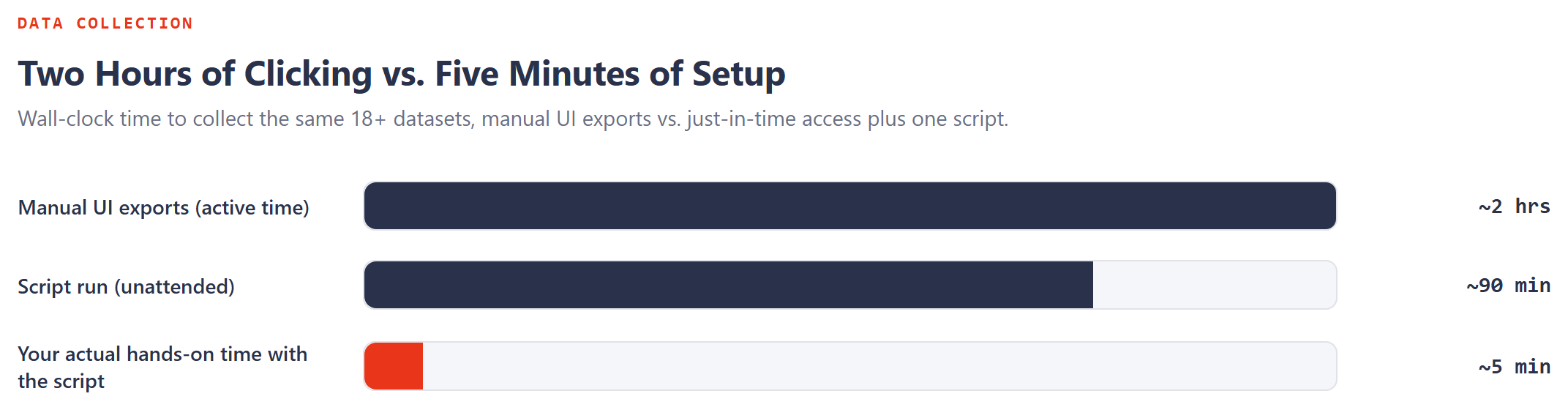
Five minutes of setup to request and confirm JIT access, roughly ninety minutes of unattended run time for the license, security, personalization, and audit-log datasets (1-31), most of it spent on the two multi-million-row tables (Security analysis and License Role entitlement). Compare that to actively clicking through eighteen-plus separate exports, and the time saved isn't marginal even before the newer datasets below are in the picture.
What's grown since the original 21
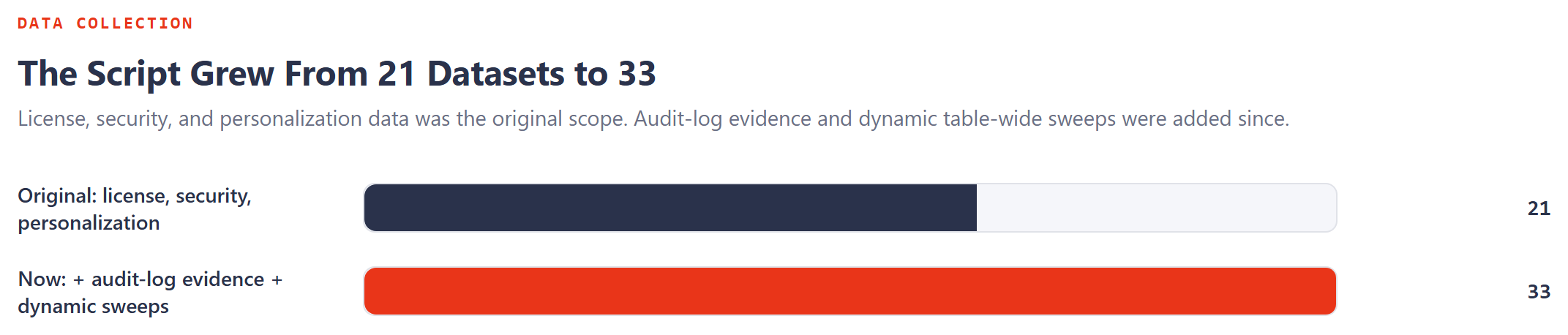
The script started as a 21-dataset pull covering license and security configuration plus personalization. It's since grown to 33, adding ten audit-log datasets (schema discovery plus who-changed-what-when pulls, feeding the write-evidence half of the two-source disposition model covered elsewhere on this site) and two dynamic, schema-wide audit-stamp sweeps that discover audit-stamp-shaped tables live rather than targeting a fixed list, one scoped to custom tables only, the other a full standard-plus-custom sweep with no exclusion filter. Both output a per-user aggregate (who touched a table, how many records), not a row-by-row log.
The two dynamic sweeps are also the one place where "roughly ninety minutes" stops being a reliable estimate. A custom-tables-only sweep is fast, typically under a minute. The full system-wide sweep queries every table in the schema and can run considerably longer on a large tenant, the script warns about this explicitly before it starts rather than leaving you guessing whether it's hung.
-Preset StructuralValidation option runs exactly 11 of the 33 datasets, the ones needed to validate a redesigned security config against a UAT/test environment that has no usage evidence yet, and skips the dataset-menu prompt entirely. See HOW_TO_RUN.md in the toolkit for the full parameter.
The password prompt is intentionally unmasked rather than using PowerShell's standard masked input, because Read-Host -AsSecureString's character-by-character masking proved unreliable with pasted input across two different terminal hosts, silently truncating to a single character. The tradeoff is acceptable for a credential that's already dead in eight hours regardless; just don't screenshot that line, and run cls afterward if you want it out of scrollback.
This is the script referenced throughout this article, generalized off our own internal sandbox rather than any client's, plus the three runbooks it comes with: how to run it, the full engagement checklist (governance, JIT access, per-client schema validation), and how to install bcp for the one-off bulk exports this script doesn't need. Point it at your own sandbox's JIT credentials and it runs exactly as described above.
Unblock-File .\extract-license-data.ps1 once after extracting, then run it normally. The toolkit's HOW_TO_RUN.md covers the fallback if your organization enforces execution policy more strictly than that.
What the script resolved that the original mapping left open
Before any of this got automated, the dataset-to-table mapping lived in a spreadsheet: dataset name, the UI link, and a best guess at the underlying F&O table. Three of those guesses were flagged with a note along the lines of "I am not sure if it's the right table, check it." Building the script meant actually checking, against a live schema, not against memory:
- Sub Role V2. The original guess was
SecurityRoleExplodedGraph, which turned out to store only RecId pairs, no names or identifiers. The right table isSecurityRoleSubRole, which already has both identifier and name pre-resolved for role and subrole, zero joins needed. - Role Duty. The guess was
SecurityRoleDutyExplodedGraph, which would have worked but required manually joining back toSecurityRoleandSecurityDutyfor names.SystemSecurityRoleDutyEntity, a pre-joined DMF entity view, does the same job with no manual join at all. - Personalization. This one wasn't a wrong guess so much as an open question: the plan was a single manually-produced XML file, format still undecided. It resolved into four fully SQL-backed CSV reports instead, Relationships, Views, Roles, and Summary, built from
FormRunConfigurationjoined toFormRunConfigurationRoleandSecurityRole, with every enum (Scope,FormViewOptionType) verified against live data rather than assumed.
Two datasets from the original mapping stay exactly where they were, and the script says so plainly rather than pretending otherwise. Current license subscription lives in the Power Platform Admin Center, a separate Microsoft cloud service entirely outside the F&O database, no SQL path exists. Telemetry lives in Application Insights, reachable only through KQL, not through this connection at all. When you run every dataset in one pass, the script prints both callouts explicitly at the end, so nothing silently comes up empty without an explanation.
What this doesn't replace
Speed doesn't remove the parts of the process that were never about speed in the first place.
- Governance still comes first. A signed client authorization, a data-processing agreement covering the exported data and anything derived from it, and a retention policy all need to be in place before any of this touches client data, JIT access or not.
- New clients get a schema spot-check before a full run. Every table name and every enum-value translation in the script was validated against one specific environment and platform release. A different client, especially on a different app version, can have a genuinely different table (rare) or different integer codes for an extensible enum like
CaseCategoryType(more common, since businesses can add their own values). Every enum translation in the script falls back to the raw number if it doesn't recognize a value, so nothing breaks silently, but a fallback number is a flag to re-verify that column, not a finished answer. bcpstill has a job. This script comfortably handles multi-million-row tables throughSystem.Data.SqlClient. For a true one-off bulk export well past that scale,bcp's raw bulk-copy mode remains the right tool; it's a separate install with its own setup quirks (ODBC Driver 18 as an undeclared prerequisite, a license-acceptance flag that's easy to get wrong), and it's not needed for anything in this script's normal run.
| Step | Manual (UI exports) | JIT + script |
|---|---|---|
| Access setup | Standing admin credentials | ~5 minutes, LCS request + IP check |
| Collection | ~18 separate exports, actively driven | 1 script run, unattended |
| Large-table handling | Manual ascending/descending export + de-dupe past the row cap | Handled in one query per dataset |
| Total active time | ~1.5 to 2 hours | ~5 to 10 minutes |
| Total elapsed time | ~1.5 to 2 hours | ~80 to 95 minutes for datasets 1-31, mostly unattended; longer if the full system-wide audit sweep (33) is included on a large tenant |
The two datasets that live outside the F&O database, current license subscription and telemetry, still need their own path. Everything else that used to mean eighteen separate manual exports for a license analysis, personalization included, now means one JIT request and one script run, and the script has since grown to cover audit-log evidence too, twelve datasets past what a manual license-and-security review ever needed to touch by hand. Same data, same downstream analysis, a fraction of the hands-on time. See our companion article on what we collect and why for the full manual walkthrough this replaces.